Accounting Tasks
The Accounting tab on the Dashboard allows you to perform the accounts-related tasks. You can add and manage vendors, expenses, invoices, and purchase orders from here.
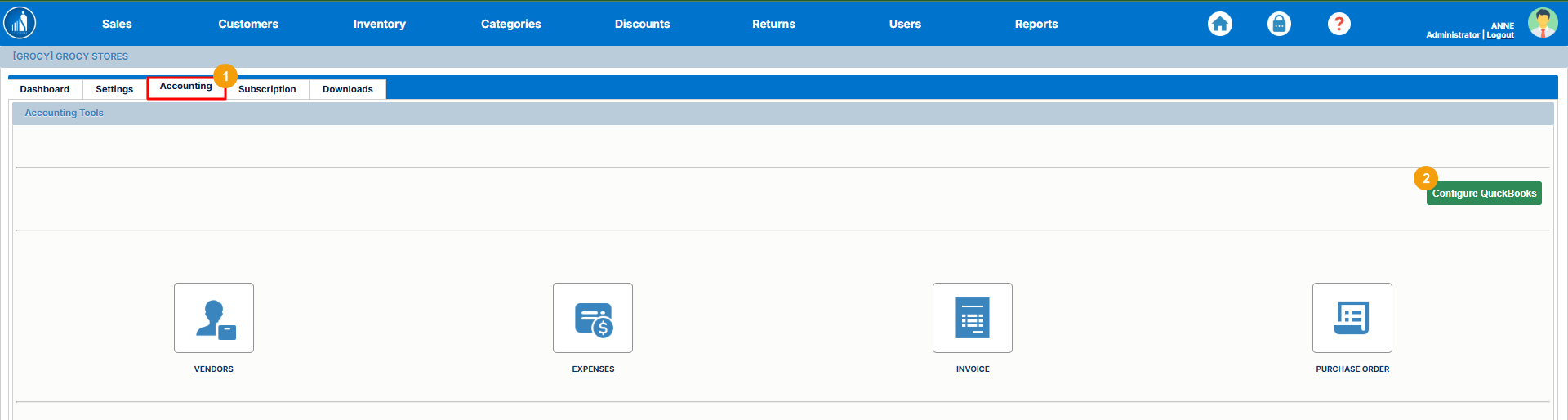
Configuring QuickBooks
As mentioned earlier, the ScanTranx maintains all the accounting data within QuickBooks. You can configure it as follows:
1. Go to the Accounting tab.
2. Click Configure QuickBooks.
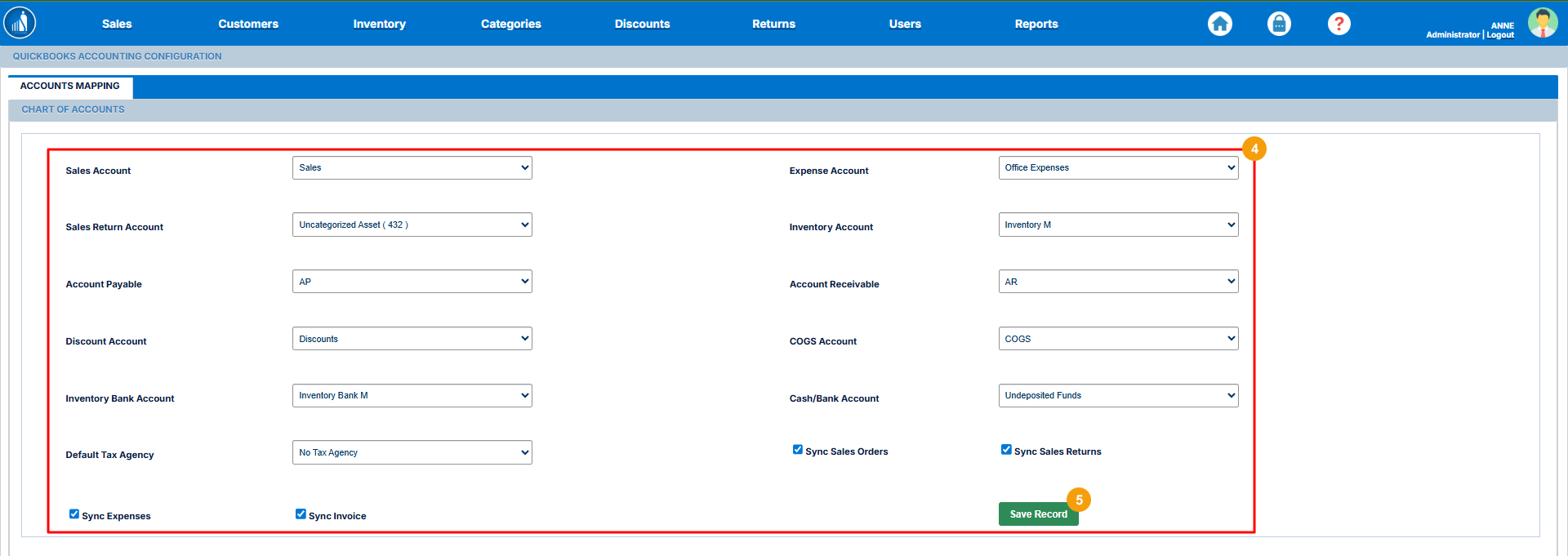
3. Again, click Configure.

4. Add the required details.
5. Click on Save Record.
Managing Vendors
You can add or edit the vendors from this option.
How to Add New Vendors?
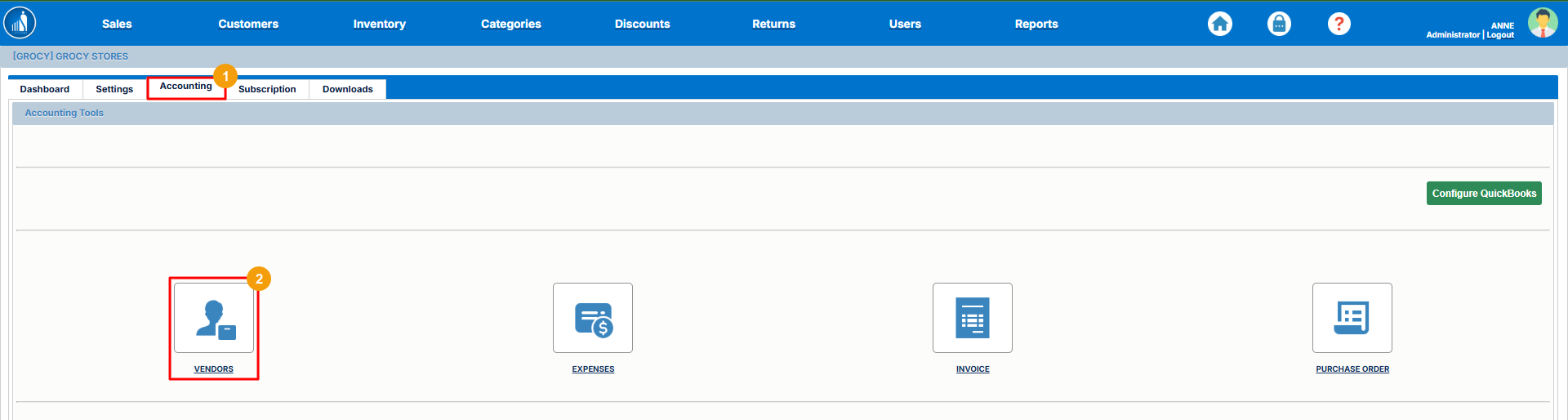
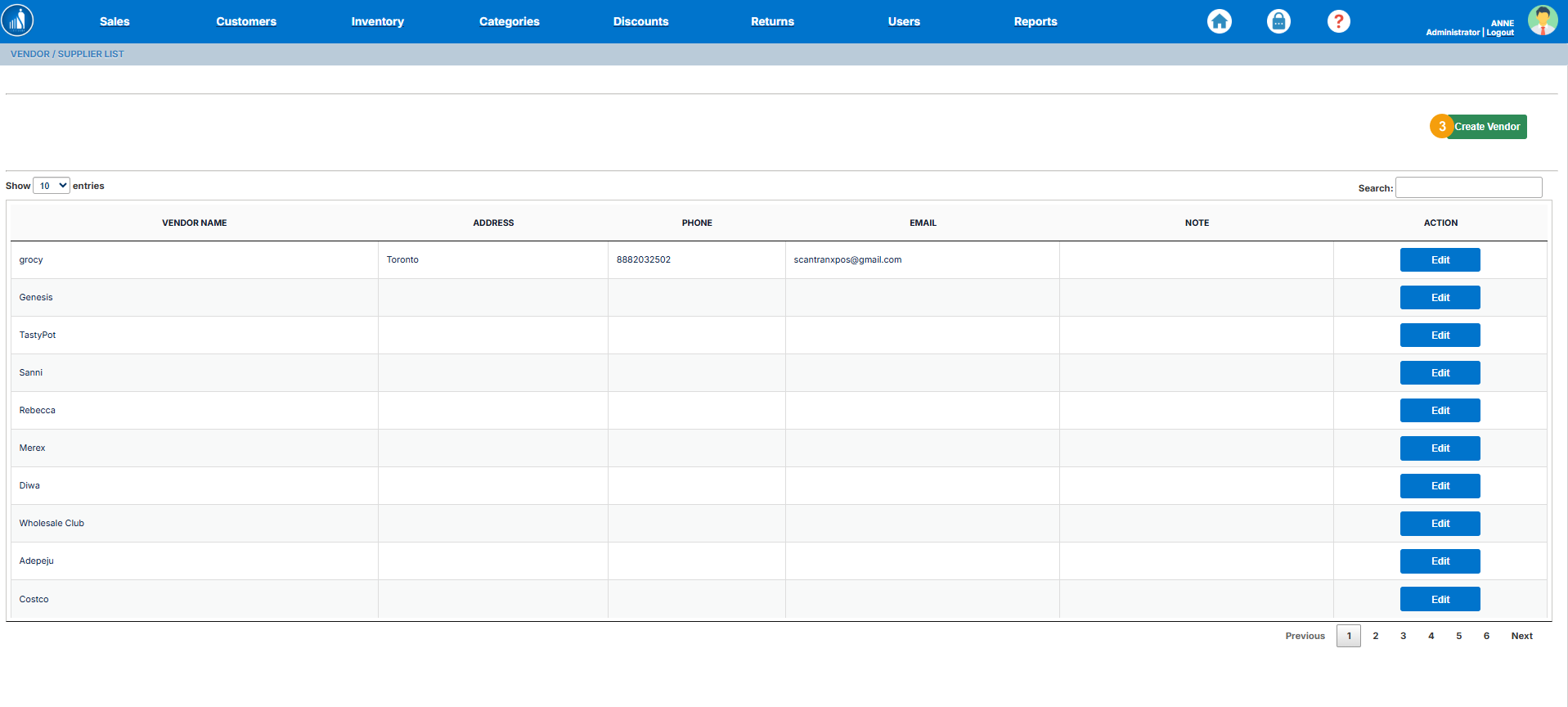
1. Go to the Accounting tab on the Dashboard.
2. Select Vendors.
3. Click on Create Vendor.
4. Enter the vendor name.
5. Enter the vendor email.
6. Enter the vendor address.
7. Enter the zip code.
8. Enter the vendor phone number.
9. Enter the vendor city and state.
10. Add notes.
11. Select a country.
12. Click Create Vendor.
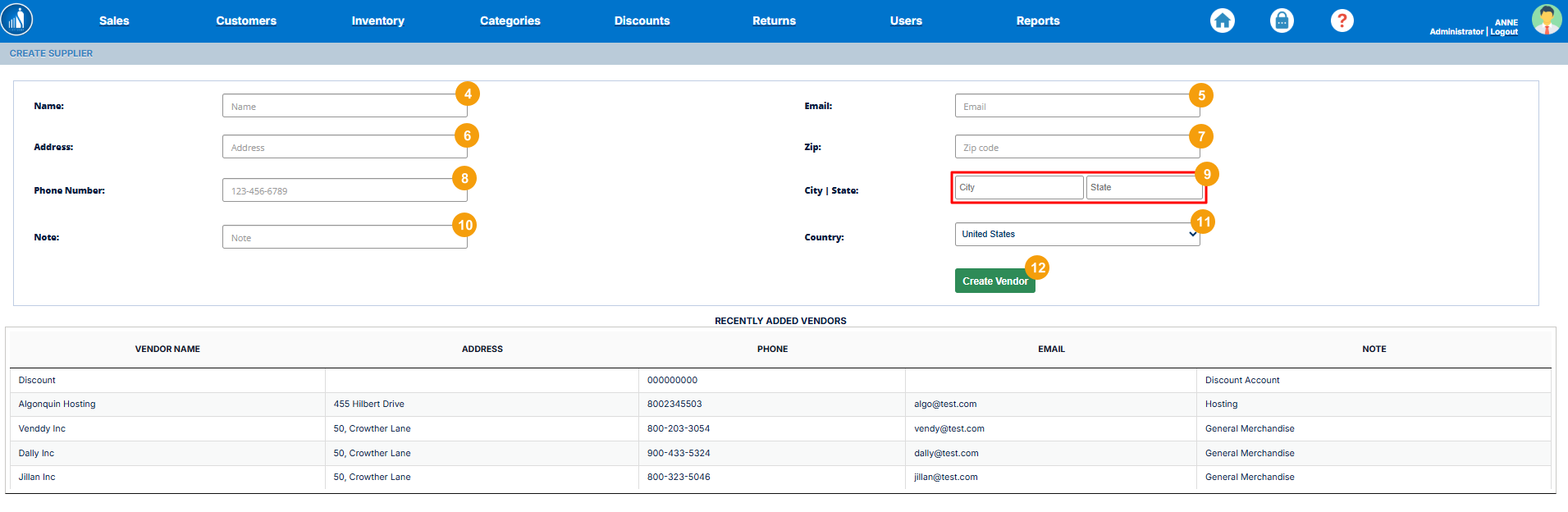
The vendor will be added to the existing vendors list.
How to Edit Existing Vendors?
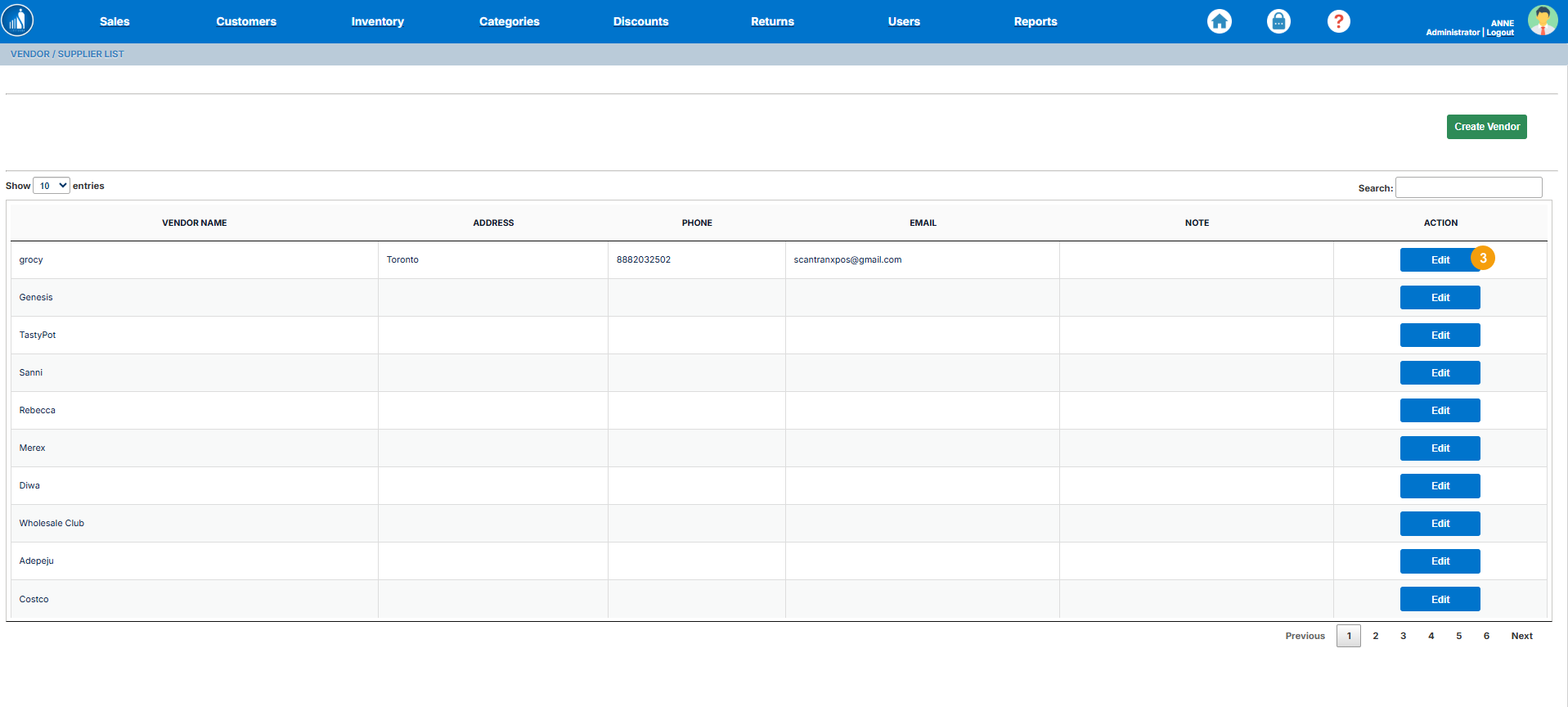
1. Go to the Accounting tab on the Dashboard.
2. Select Vendors.
3. Click on the Edit button before the vendor you want to edit.
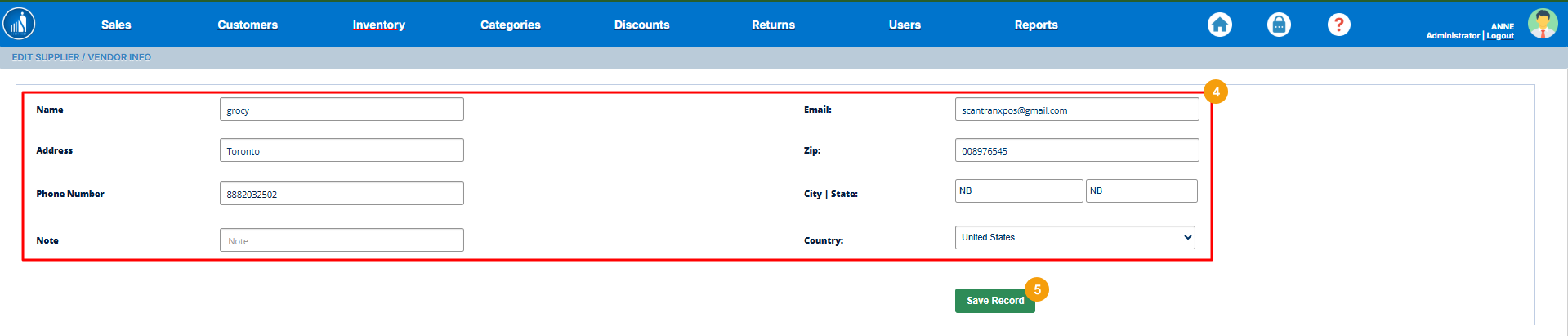
4. Make the desired changes.
5. Click Save Record.
Managing Expenses
This option allows you to view and add the expenses.
How to Add New Expenses?
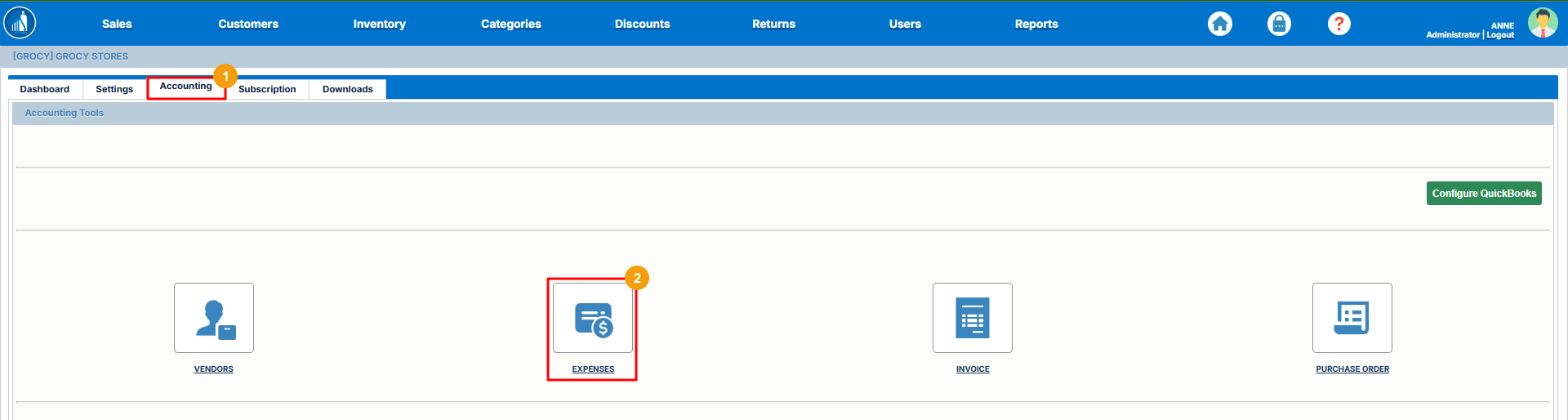
1. Switch to the Accounting tab on the Dashboard.
2. Select Expenses.
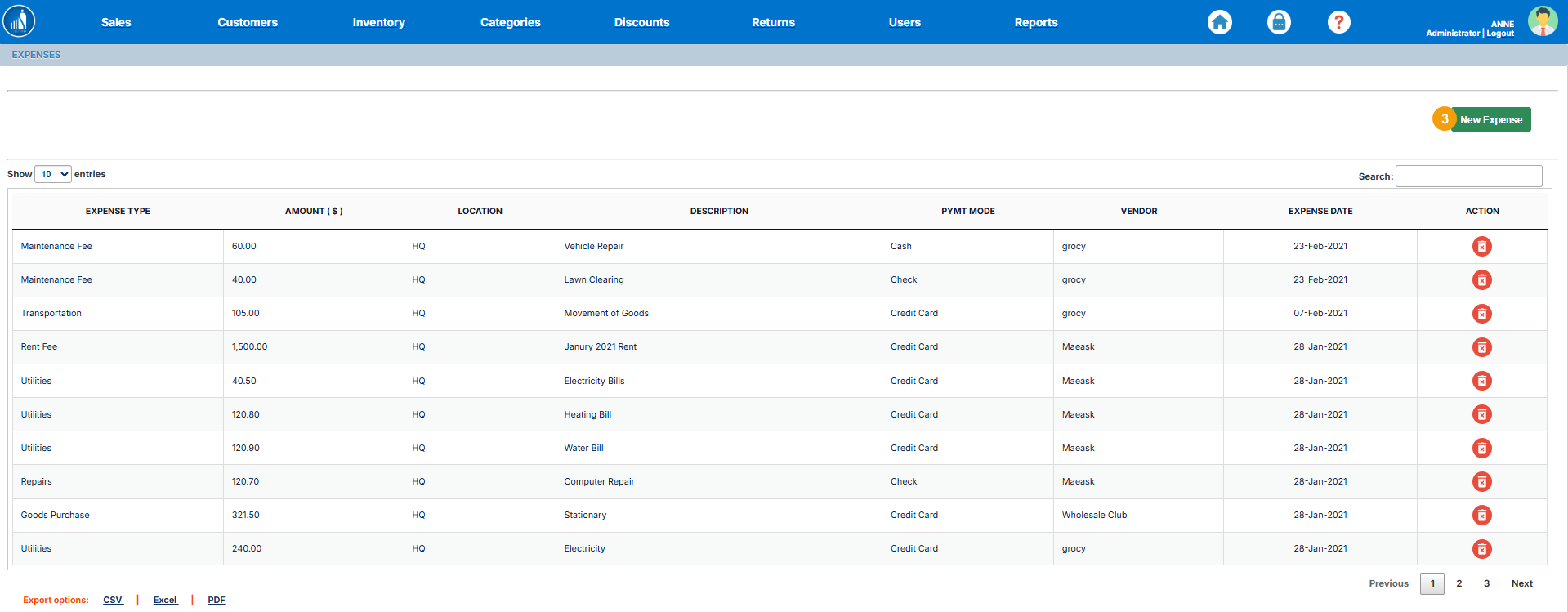
3. Click on New Expense.
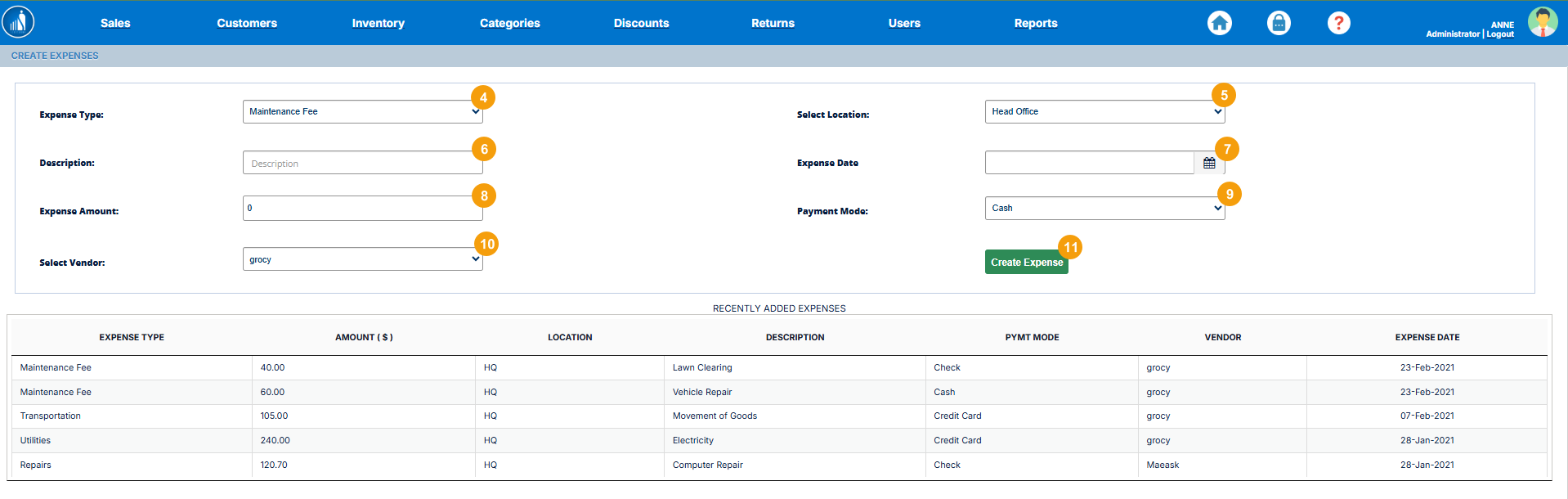
4. Select an expense type.
5. Select a location.
6. Add expense description.
7. Select the expense date.
8. Enter the expense amount.
9. Select a payment mode.
10. Select a vendor.
11. Click Create Expense.
The new expense will be added to the existing expenses list.
How to Delete an Expense?
1. Switch to the Accounting tab on the Dashboard.
2. Select Expenses.
3. Click on the Trash icon.
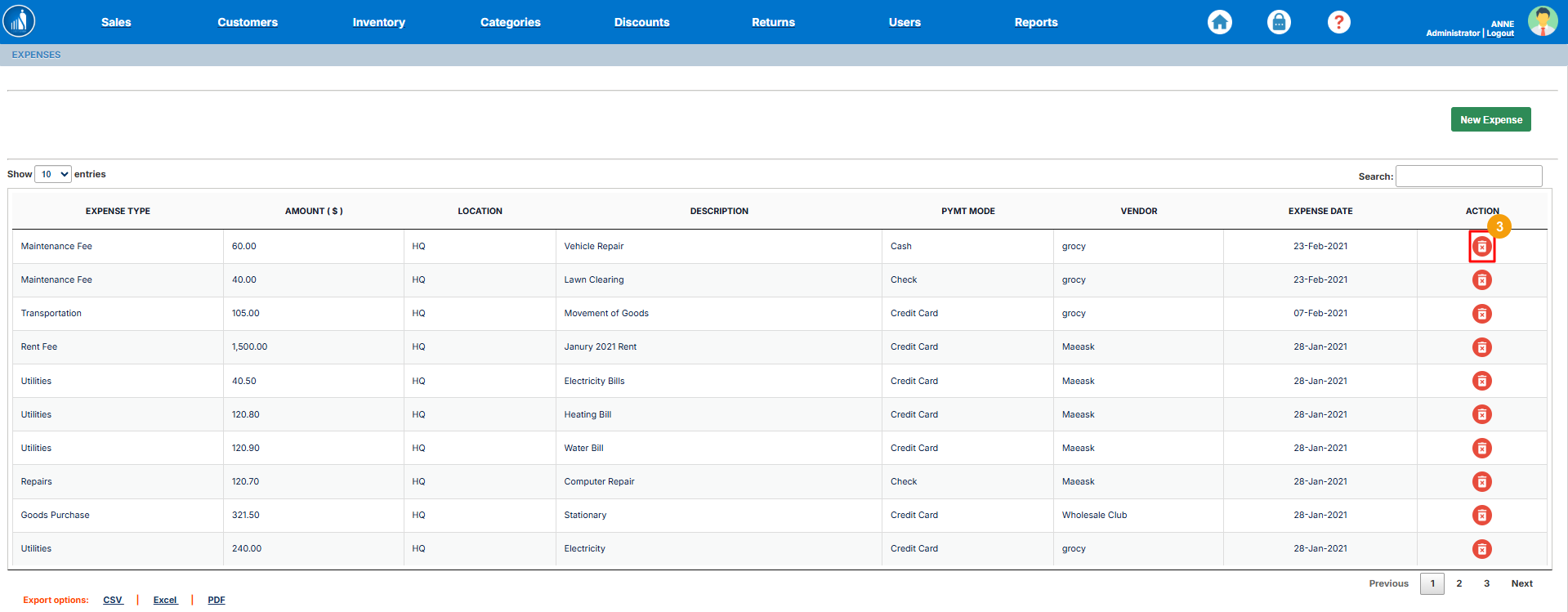
The expense will be removed from the system.
Managing Invoices
Under Invoices, you can manage the invoices, email them to the customers, or create new ones.
How to Create a New Invoice?
1. Switch to the Accounting tab on the Dashboard.
2. Select Invoices.
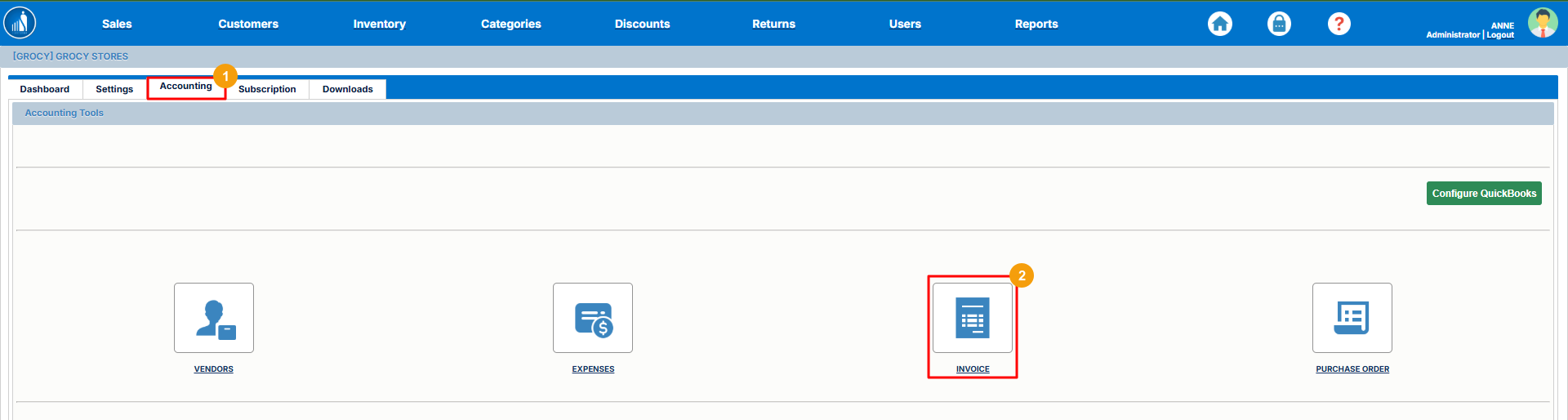
3. Click on New Invoice.
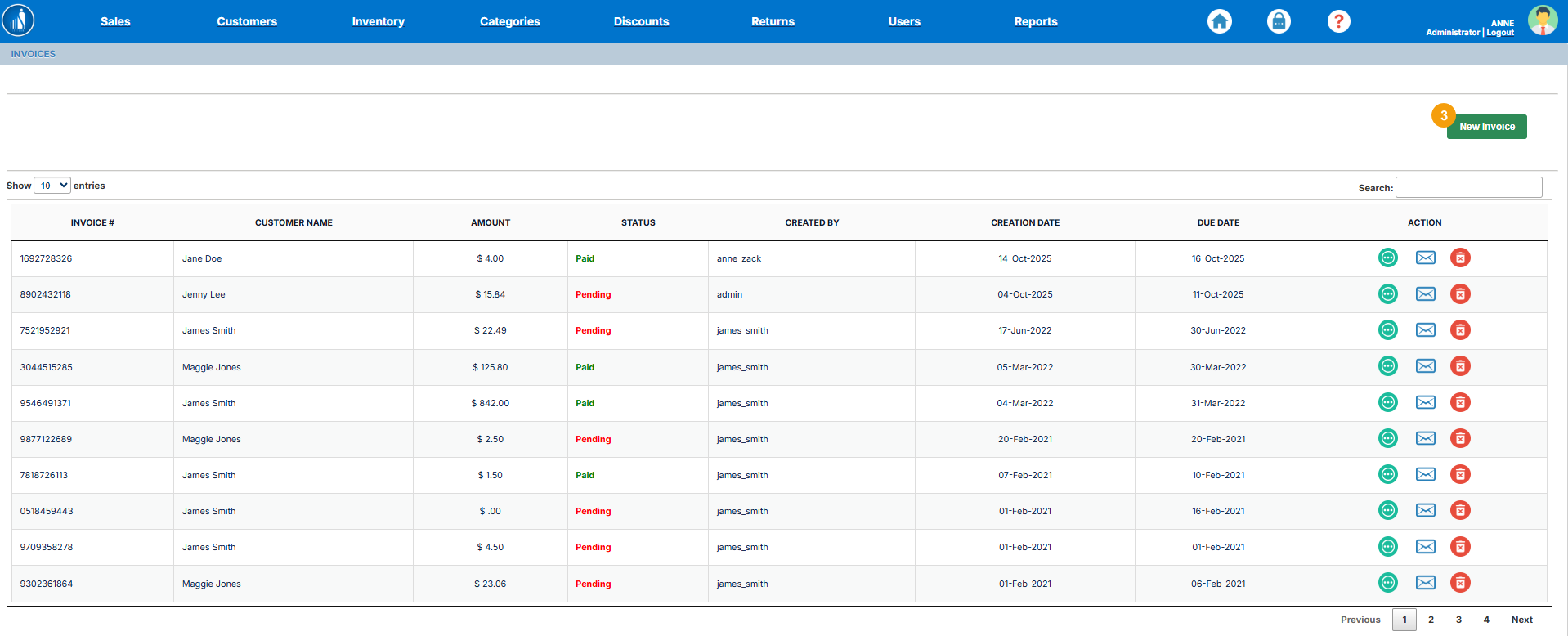
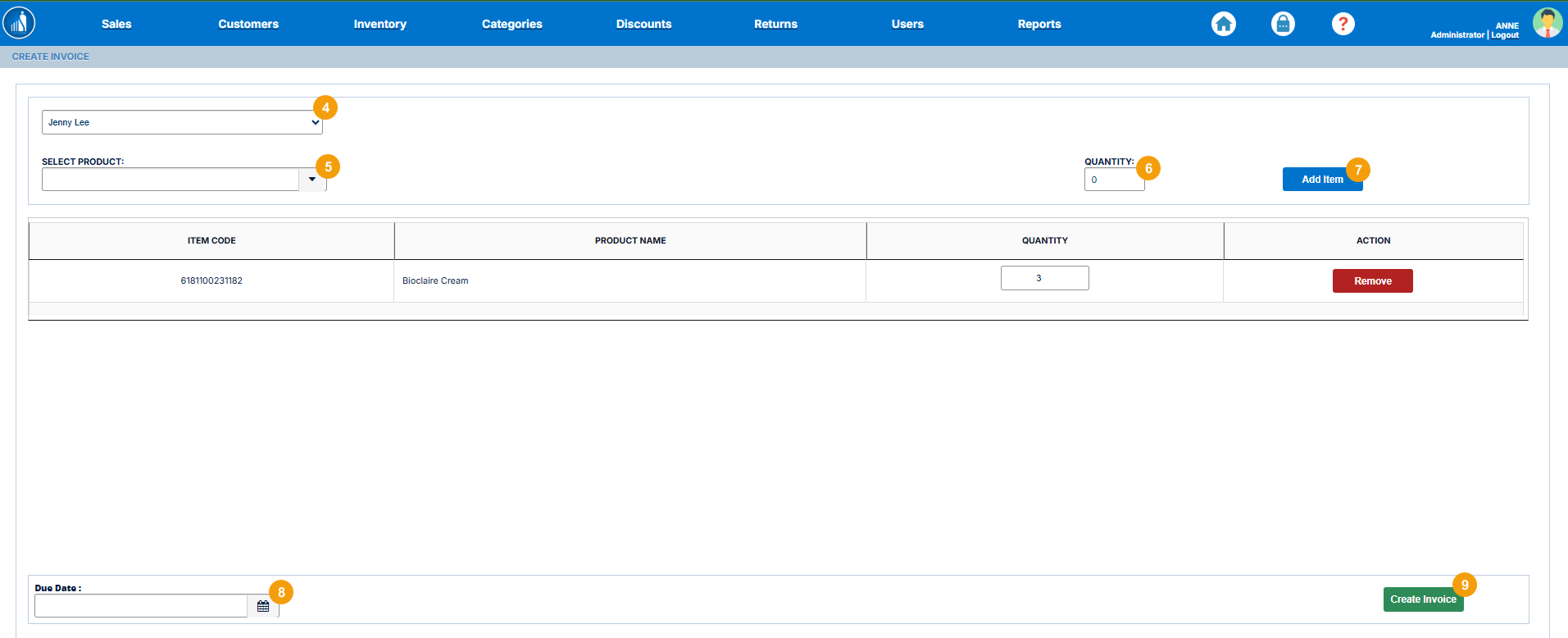
4. Select a customer.
5. Select a product.
6. Enter quantity.
7. Click on Add Item.
Add as many items as needed.
8. Select a due date by which the invoice has to be paid.
9. Finally, click Create Invoice.
How to Update an Invoice?
1. Switch to the Accounting tab on the Dashboard.
2. Select Invoices.
3. Click on the three-dots icon.
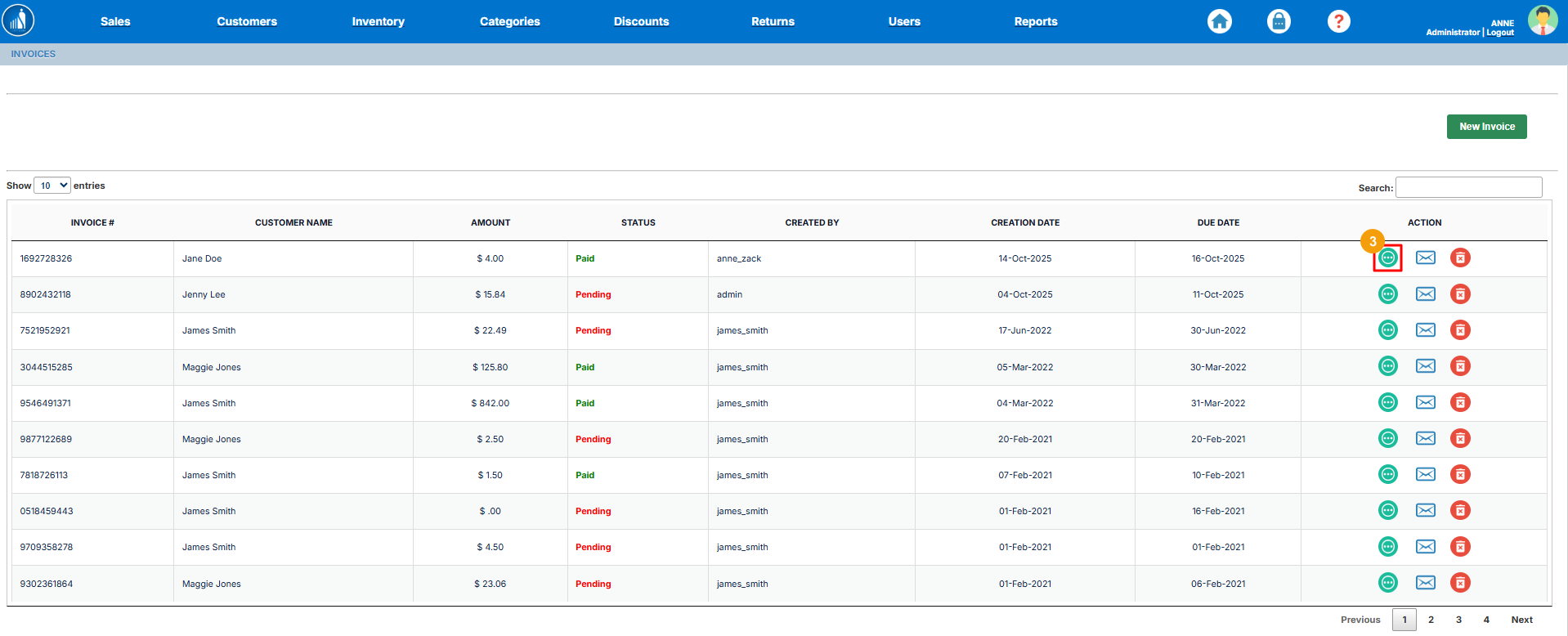
4. Select the status of the invoice.
5. Click Update Invoice.
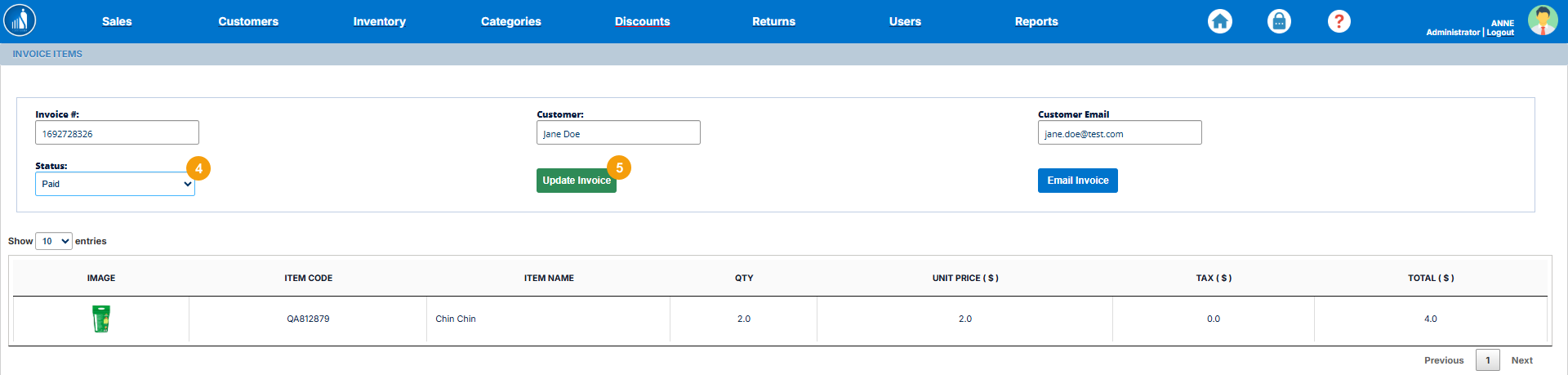
The invoice status will be updated. You can also email the updated invoice to the customer.
How to Email an Invoice?
You can send the invoice to the customer’s email as follows:
1. Switch to the Accounting tab on the Dashboard.
2. Select Invoices.
3. Click on the mail icon.
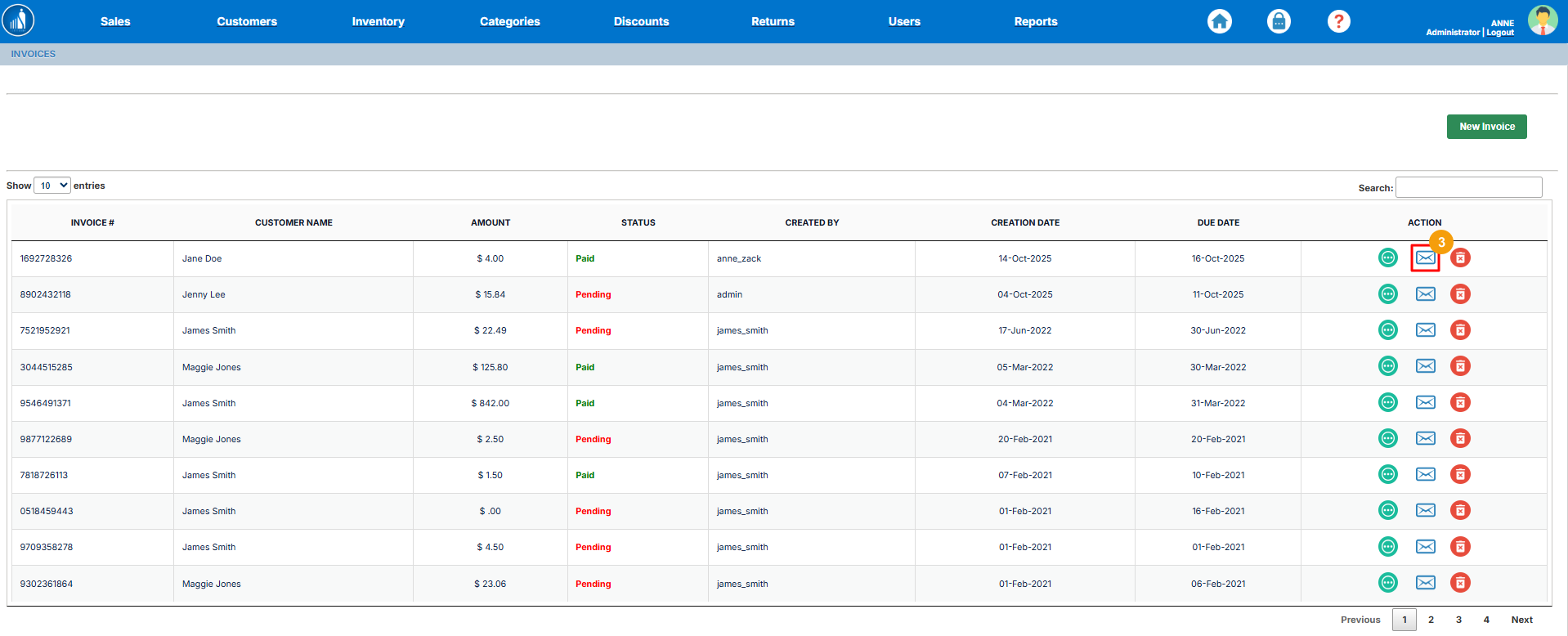
The invoice will be sent to the recipient.
How to Delete an Invoice?
1. Switch to the Accounting tab on the Dashboard.
2. Select Invoices.
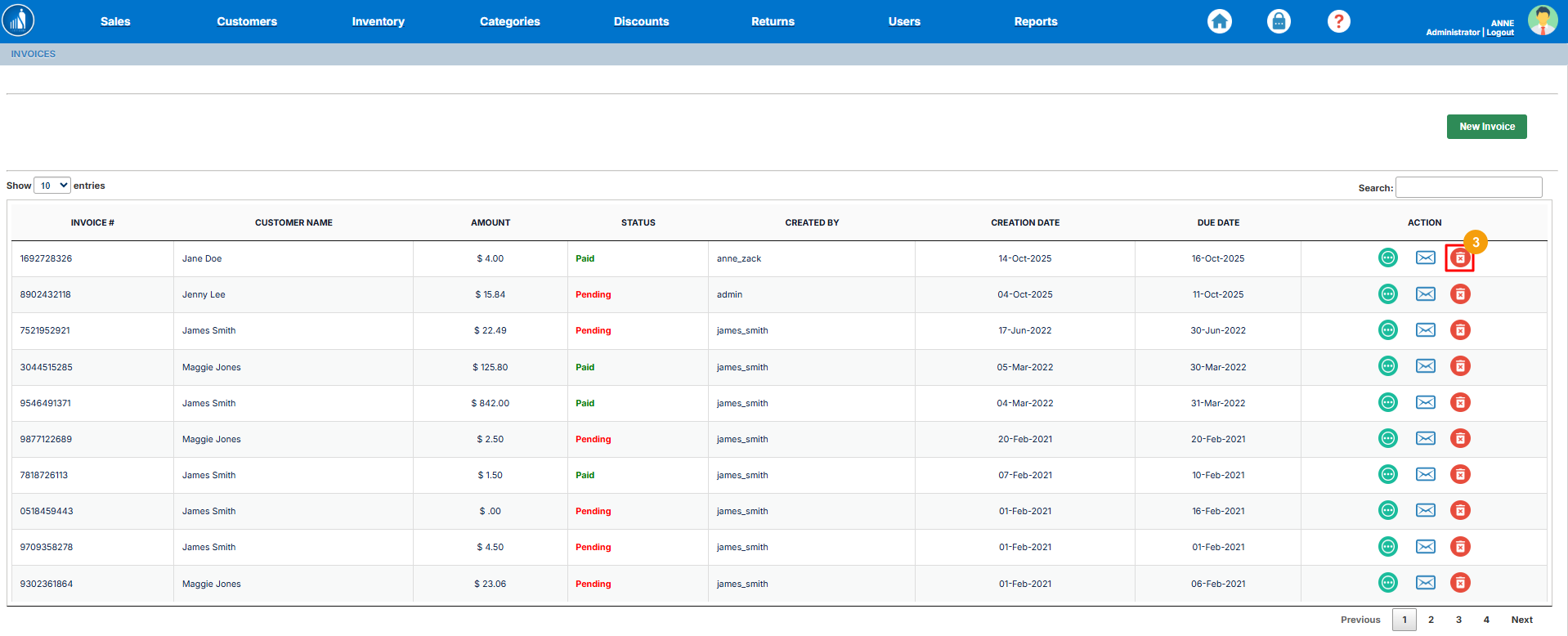
3. Click on the Trash icon.
Managing Purchase Order
ScanTranx allows you to create and manage purchase orders with different vendors.
How to Create a New Purchase Order?
1. Switch to the Accounting tab on the Dashboard.
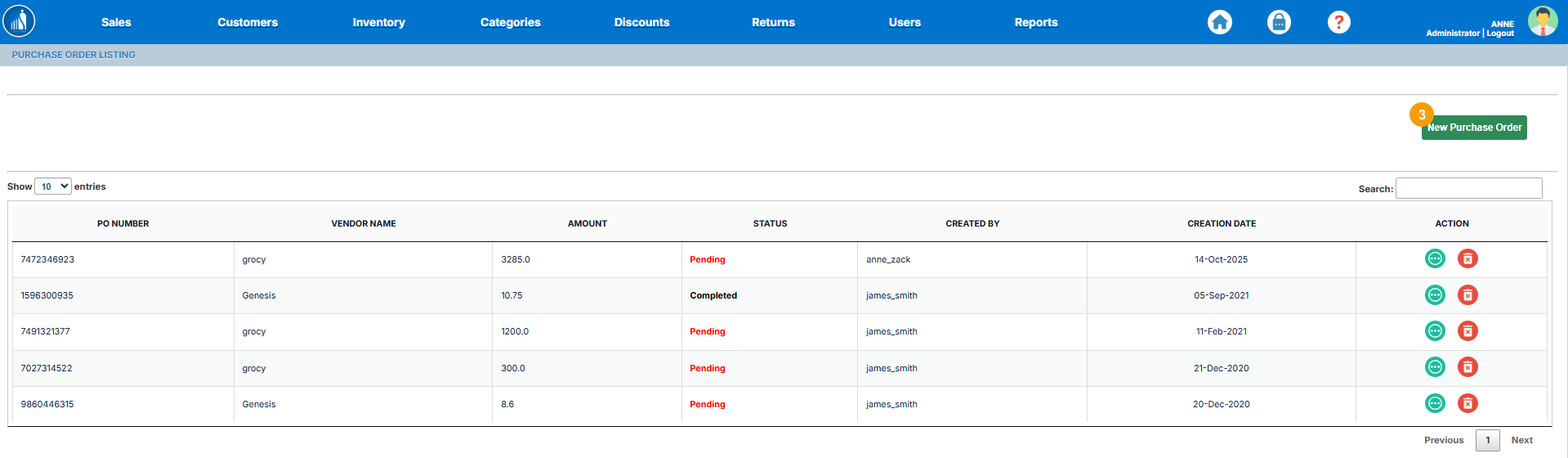
2. Select Purchase Orders.
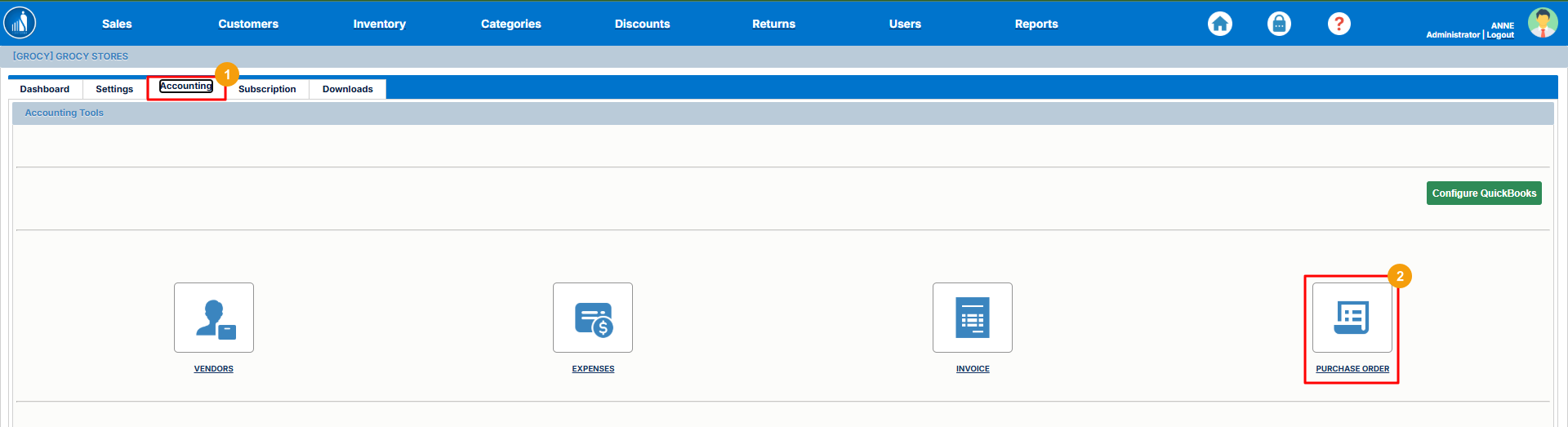
3. Click New Purchase Order.
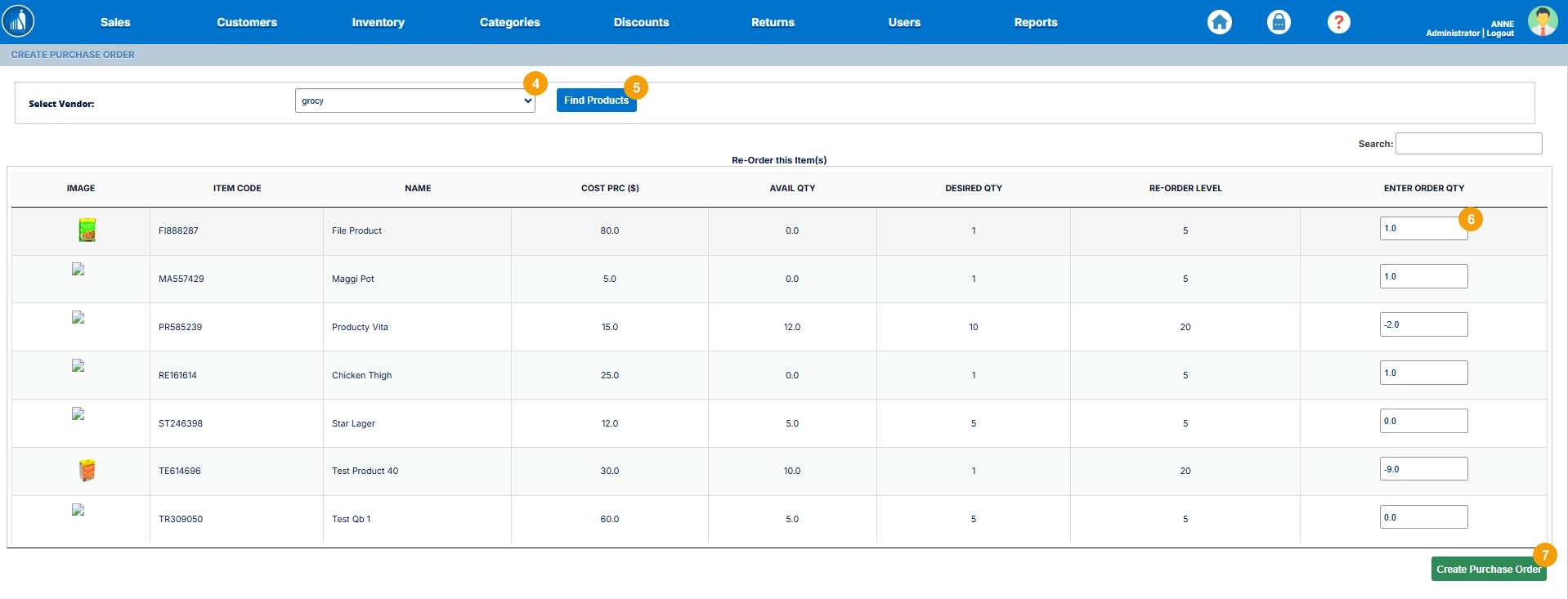
4. Select a vendor.
5. Click on Find Products.
6. Enter the quantity for each product you want to place an order for.
7. Click on Create Purchase Order.
How to Update a Purchase Order?
1. Switch to the Accounting tab on the Dashboard.
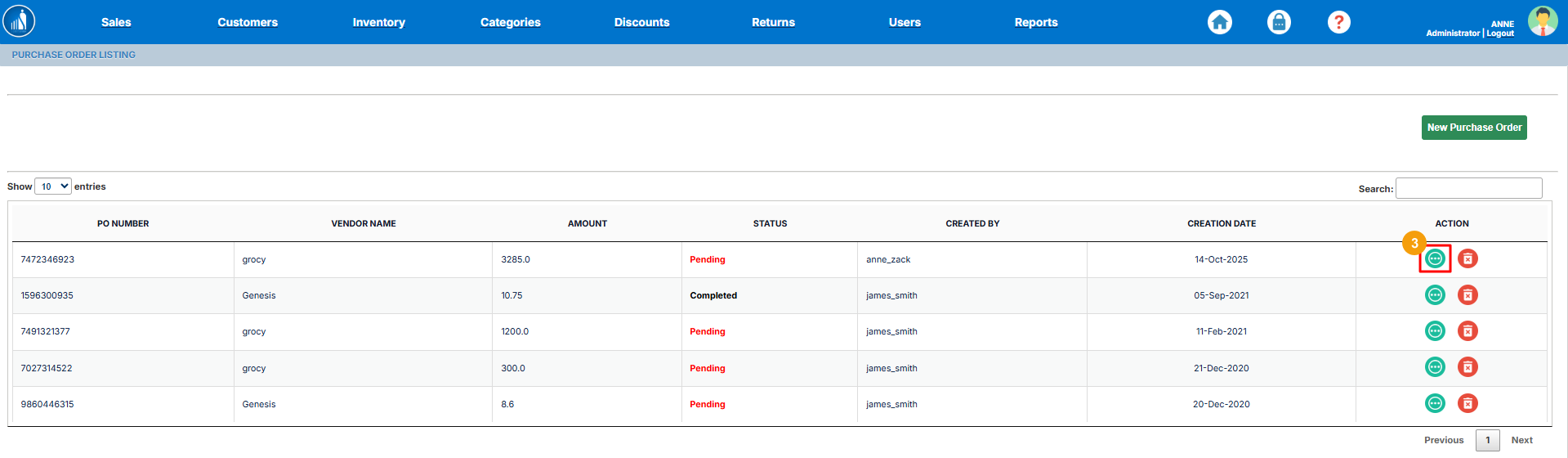
2. Select Purchase Orders.
3. Click on the three-dots icon.
4. Select the status.
5. Click on Update Record.
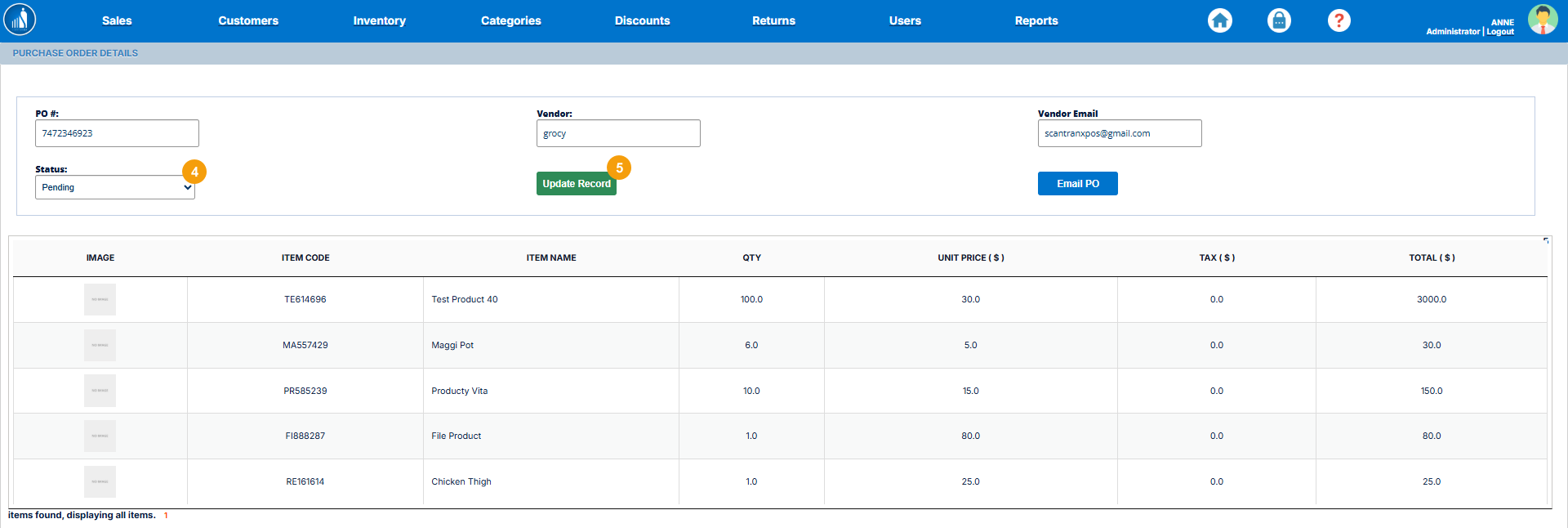
The status of the purchase order will be updated. You can also email the purchase order from here.
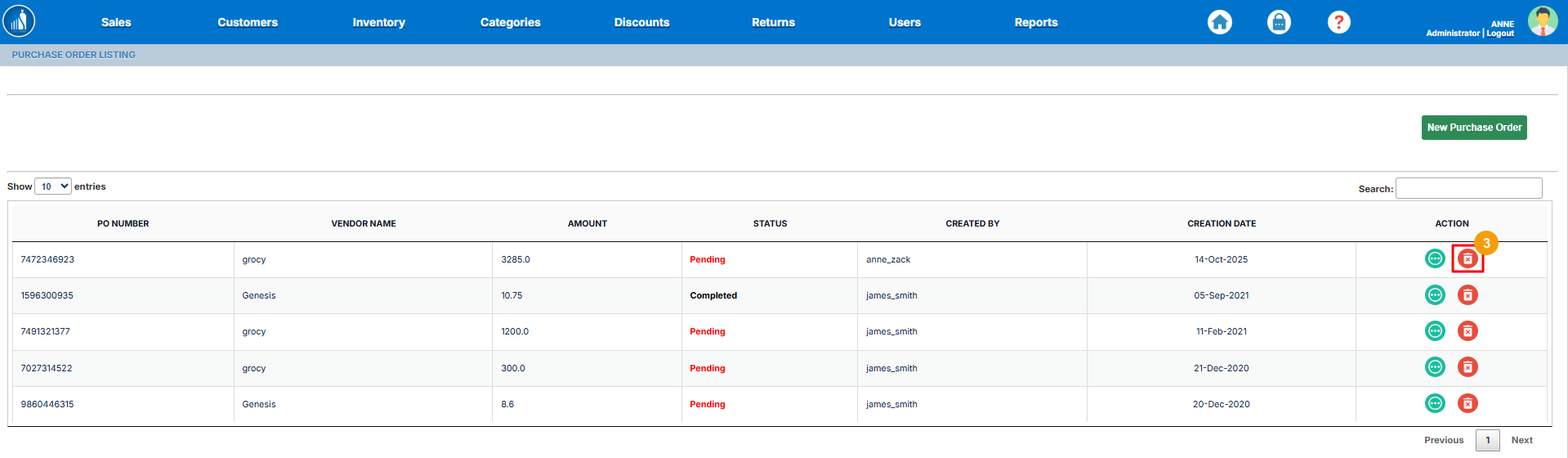
How to Delete a Purchase Order?
1. Switch to the Accounting tab on the Dashboard.
2. Select Purchase Orders.
3. Click on the Trash icon.