Generating Reports
The Reports tab allows you to view the sales and inventory reports.
How to Generate a Report?
1. Go to the Reports tab.
2. Select the Start Date.
3. Select the End Date.
4. Select a location.
5. Click on Run Report.
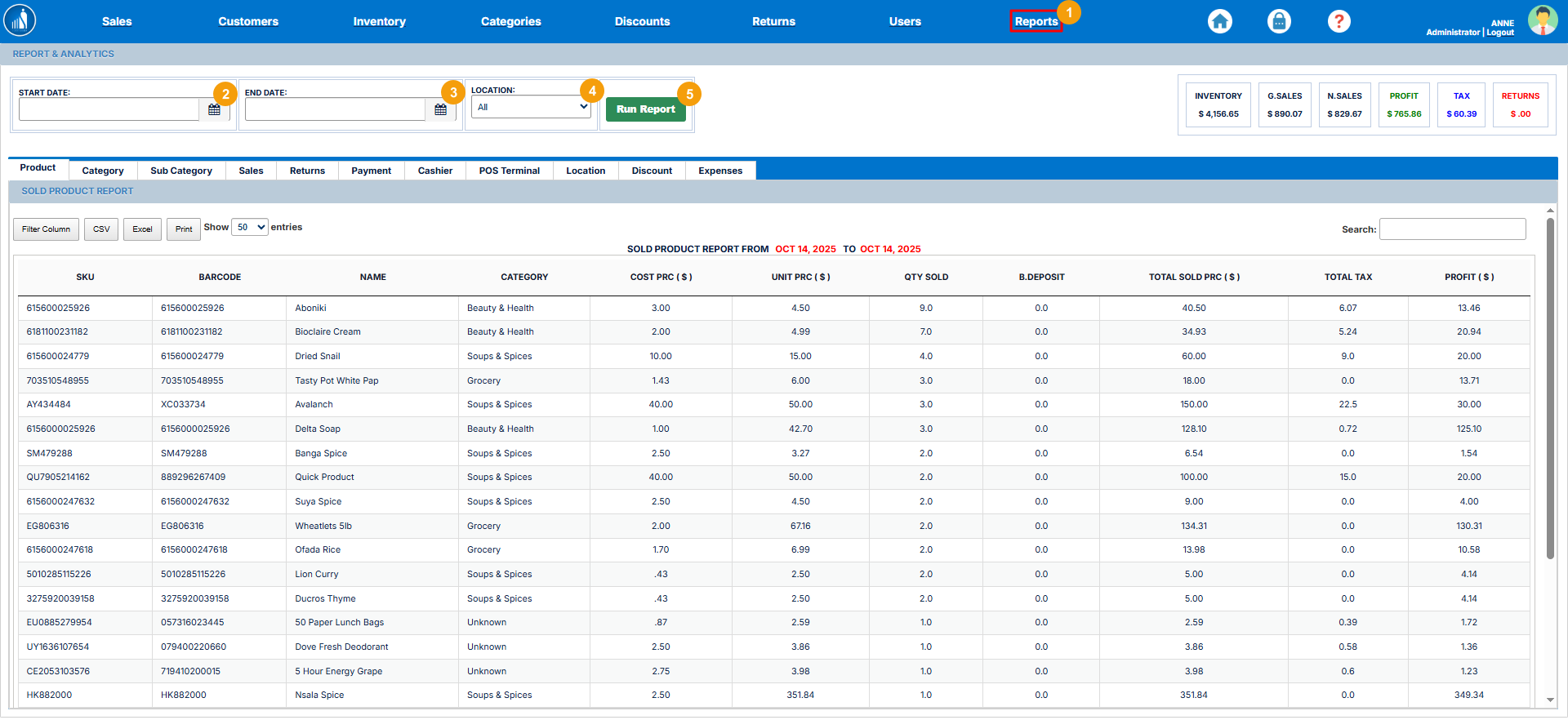
The system automatically generates the different reports for the selected period, which you can view by switching the tabs.
How to Filter Reports?
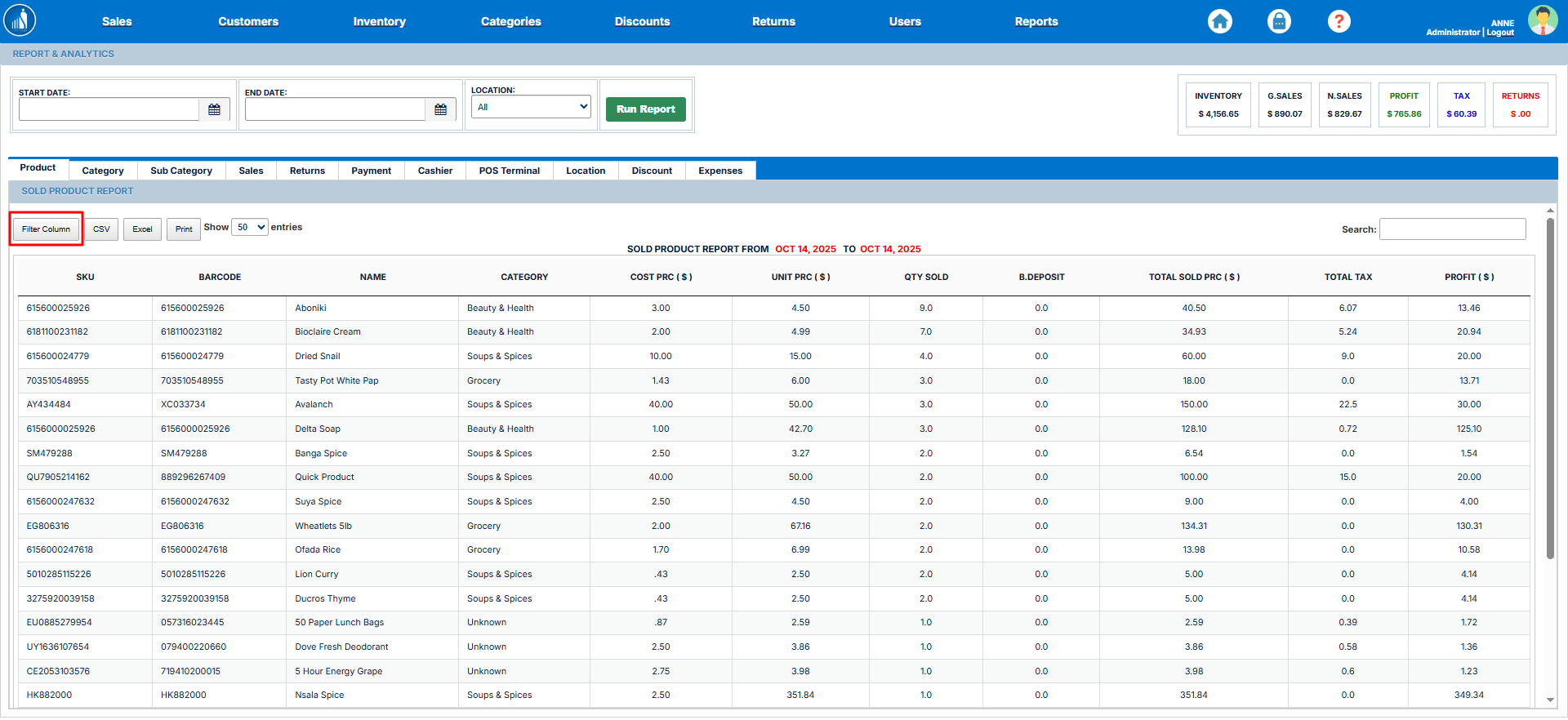
Once a report has been generated, you can filter it by clicking on the Filter Column button and selecting/deselecting the desired columns.
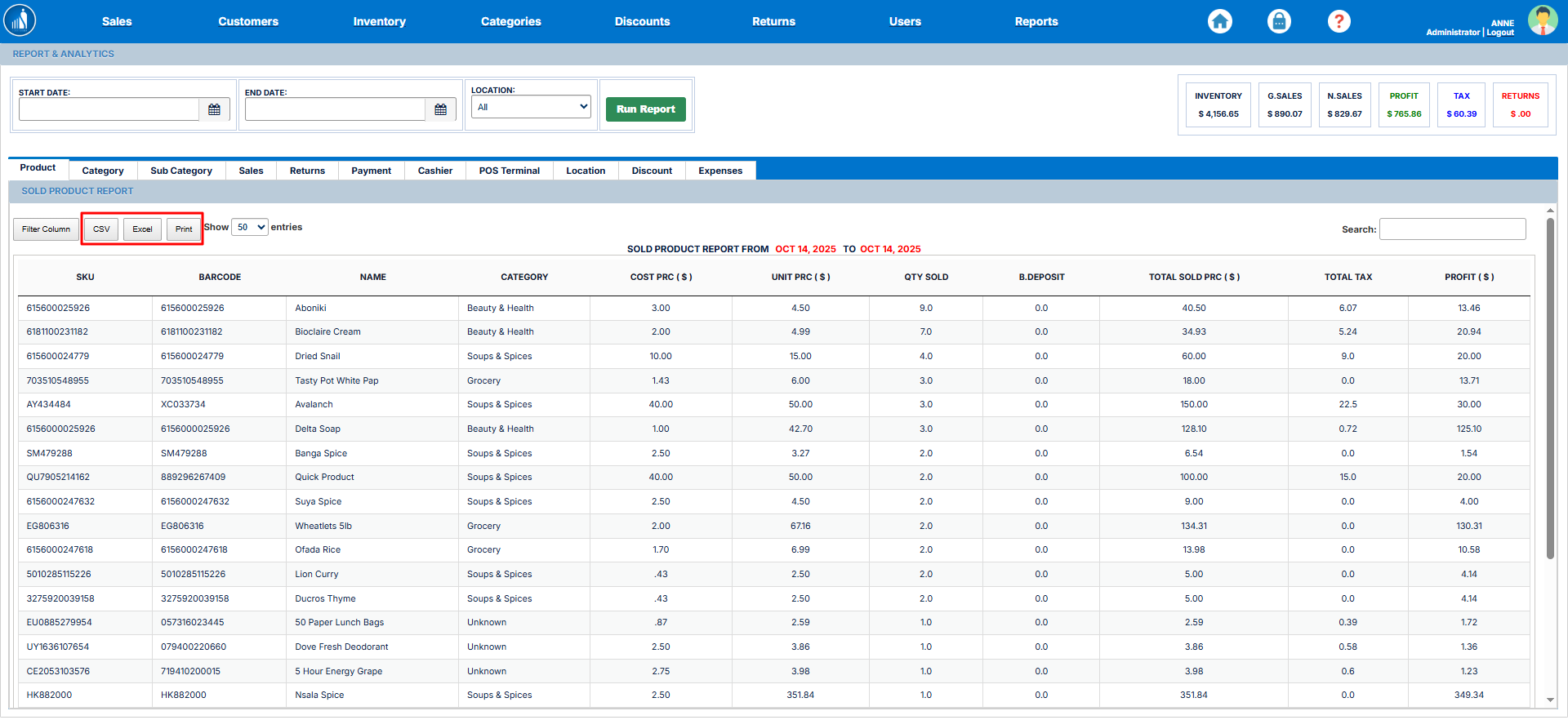
How to Export a Report?
You can export a report to CSV, Excel, or PDF/Print by clicking on the corresponding button.
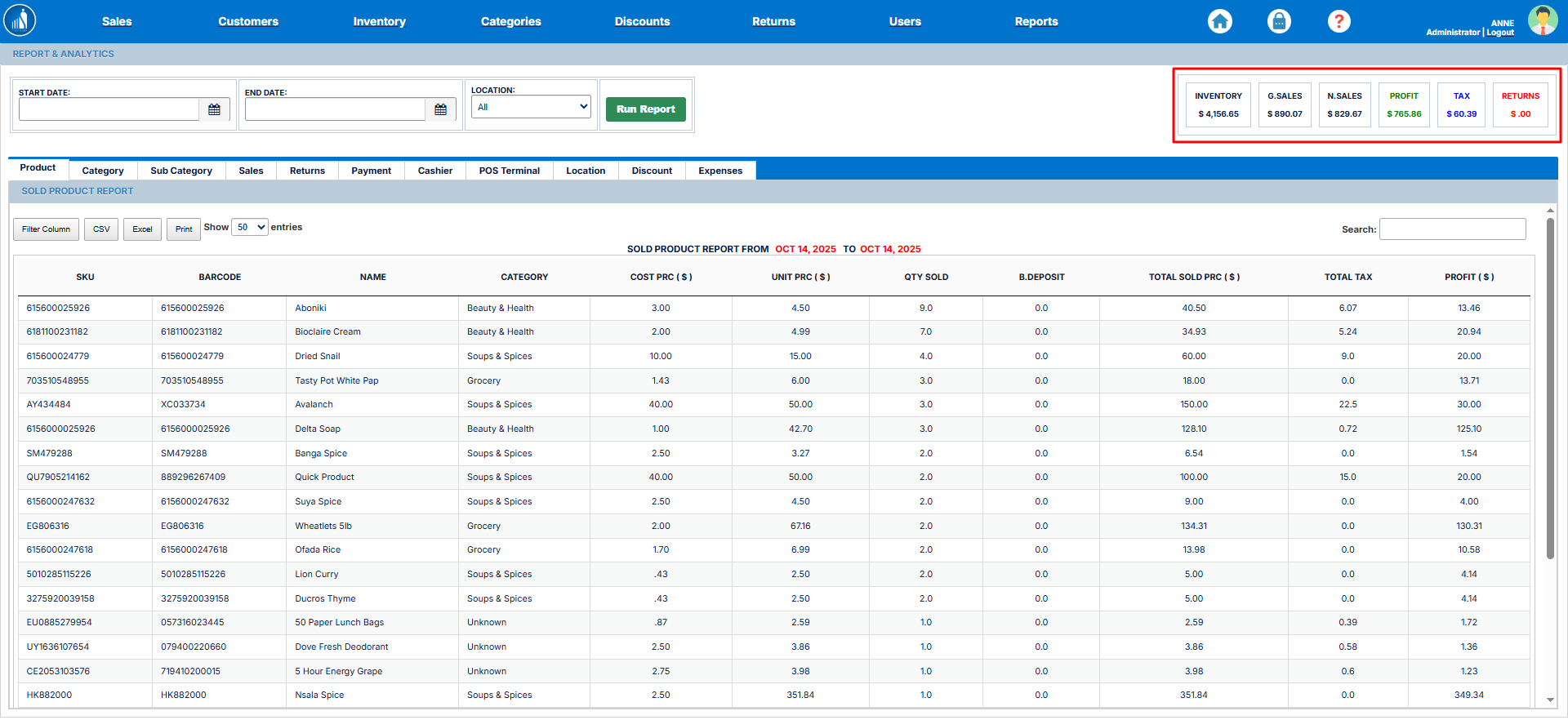
Summary Report
On the top-right side of the screen under the Reports tab, you can see the summarized report for inventory, sales, net sales, profits, tax, and returns.
It includes:
- Inventory: Shows the worth of the total value of the inventory.
- Gross Sales: Total sales within the selected period including the tax.
- Net Sales: Total sales within the selected period excluding the tax.
- Profit: The profit made through the sales within the selected period.
- Tax: Total tax collected through sales.
- Returns: Total sales returned within the selected period.