
Managing Categories
Categories are used to categorize the products in the inventory. These must be added before adding products to the inventory. However, some default categories already exist in the system.
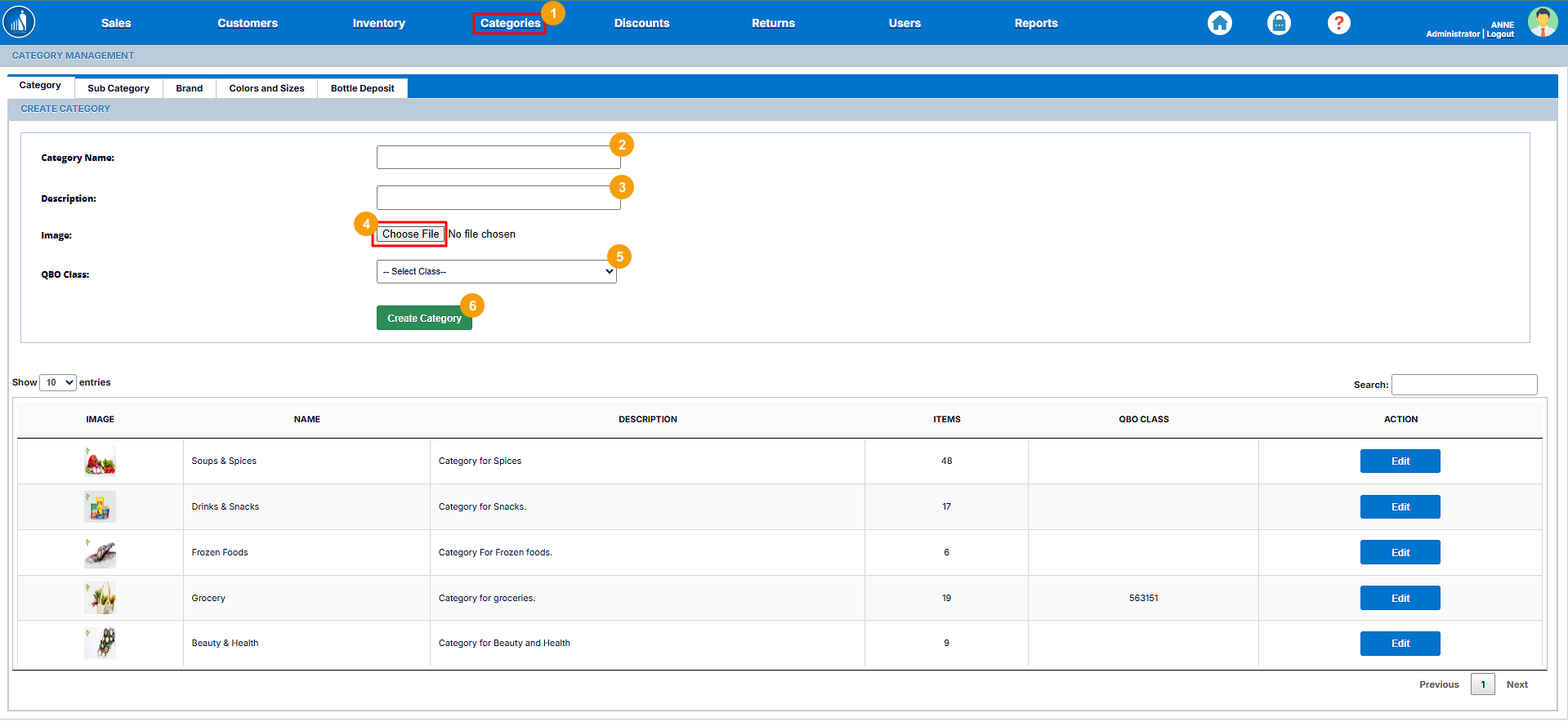
How to Create a New Category?
1. Go to the Categories tab.
2. Enter the Category Name.
3. Enter the Category Description.
4. Upload the category image.
5. Select the QBO class.
6. Hit Create Category.
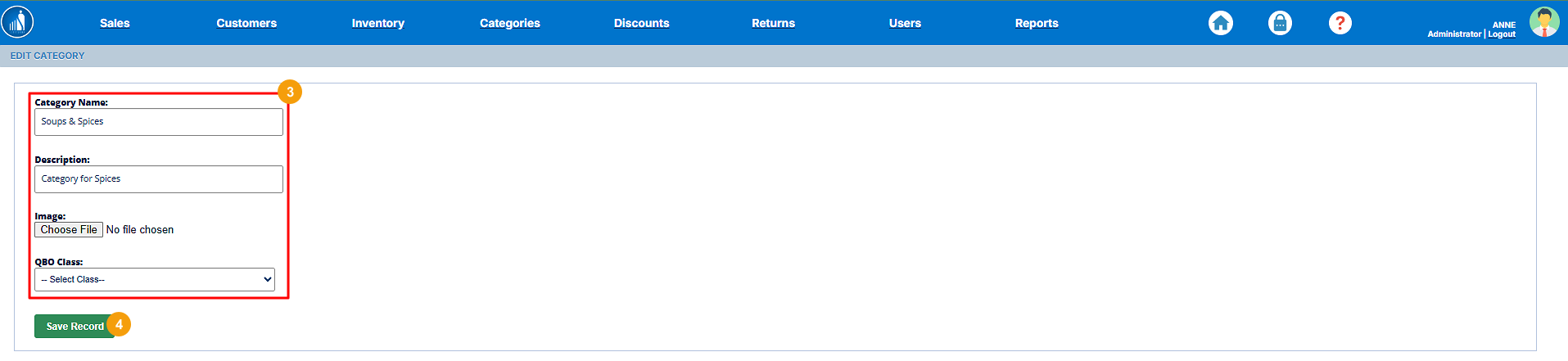
How to Edit an Existing Category?
1. Go to the Categories tab.
2. Click Edit before the category you want to edit.

3. Make changes to the category.
4. Hit Save Record.
Besides categories, you can add sub-categories to specify the products further.
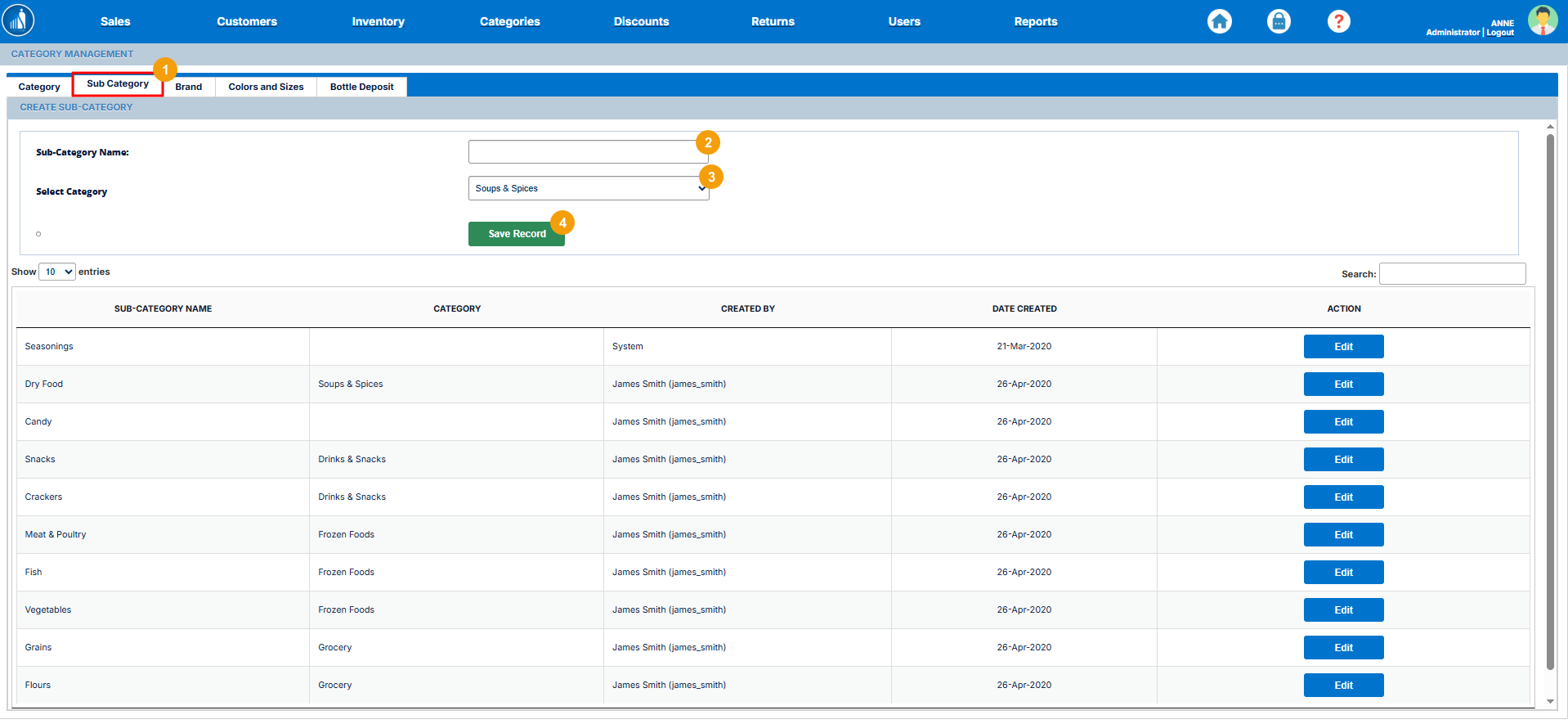
How to Add a Sub Category?
1. Go to the Sub-Category tab under Categories.
2. Enter the Sub-Category name.
3. Assign it to a category.
4. Hit Save Record.
How to Edit a Sub Category?
1. Go to the Sub-Category tab under Categories.
2. Click Edit before the sub-category you want to change.
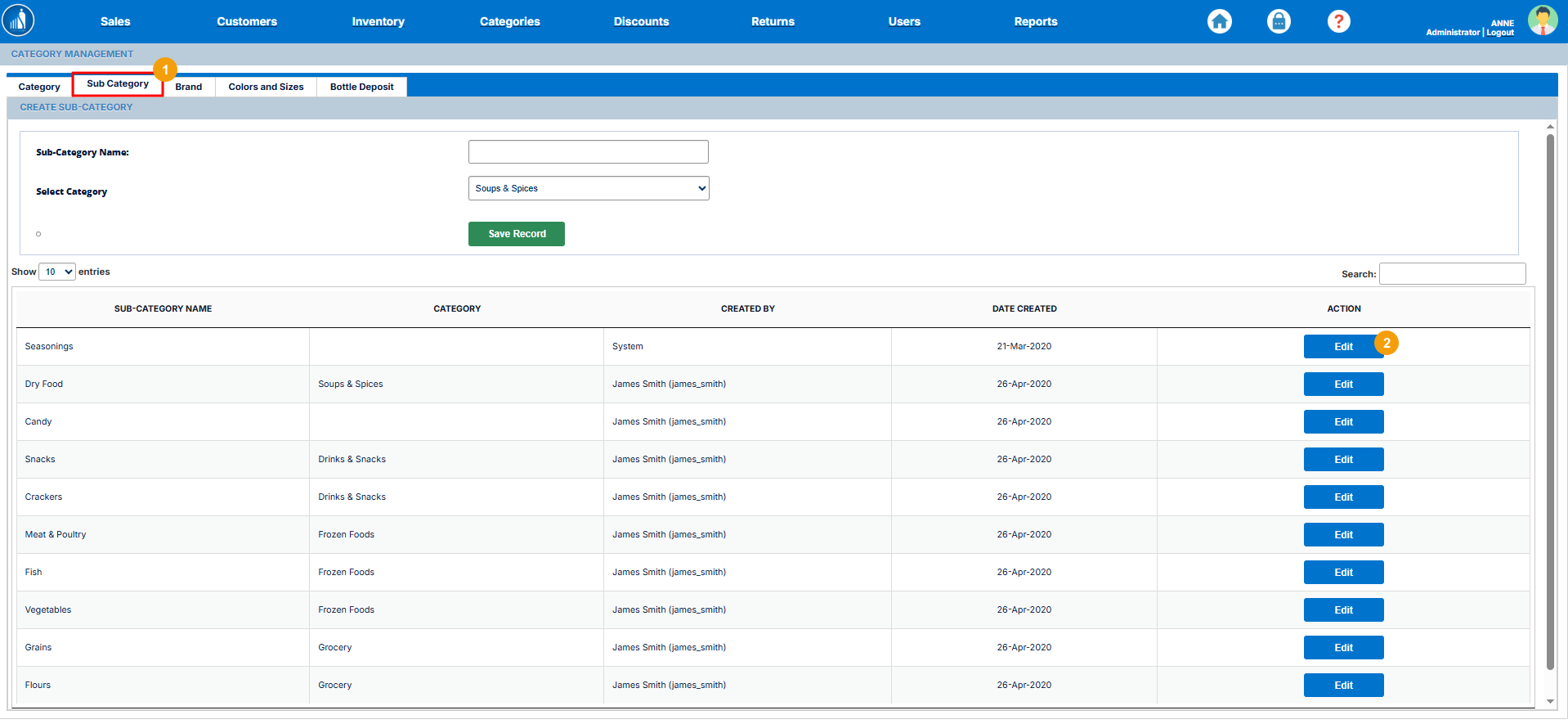
3. Make the desired changes.
3.4. Hit Save Record.

How to Create a New Brand?
If your store belongs to an industry with brands, like the fashion industry, you can add those under the Brands tab as follows:
1. Go to the Brands tab under Categories.
2. Enter the Brand name.
3. Select a category.
4. Add the brand image.
5. Hit Create Brand.

After adding the brands, you can assign them to categories and use them when adding products to the inventory.
How to Add Colors and Sizes?
If your products come in different colors and sizes, you can specify them under the Categories as follows:
1. Go to the Colors and Sizes tab.
2. Select an Attribute (Color or Size).
3. Specify the value.
4. Click on Save Record.
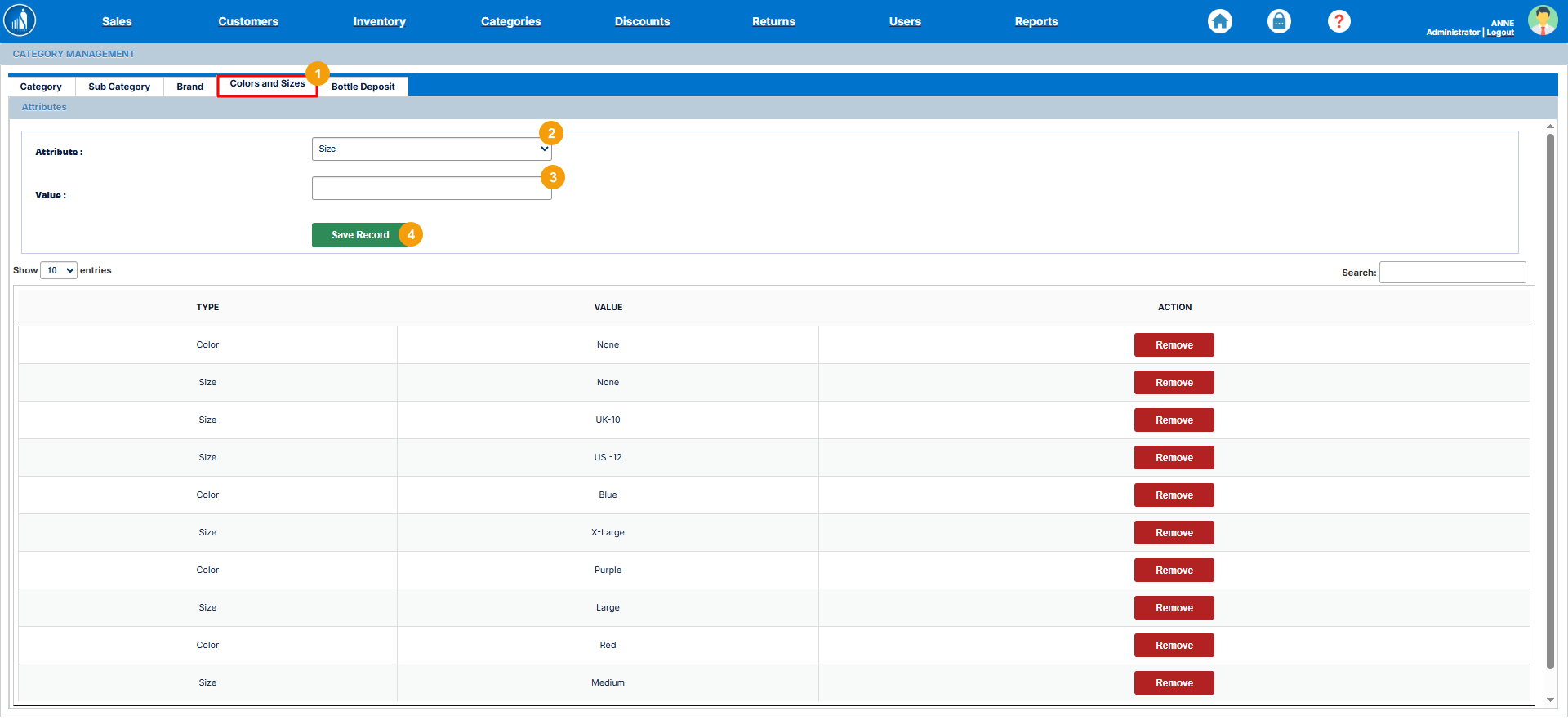
Note: You can also remove the colors and sizes by clicking the Remove button.
How to Specify Bottle Deposit Amount?
The bottle deposit is the refundable amount that the consumer pays while purchasing a bottled product. The amount is returned back to them when they return the bottle for recycling.
1. Go to the Bottle Deposit tab.
2. Enter the Deposit Name.
3. Enter the amount.
4. Click Save Record.
