Managing Discounts
The Discounts tab allows you to create and manage various types of discounts within your store. You can generate the discount coupons for specific promotions or offerapply categorycategory-based discounts to encourage sales of particular product groups.
Using this feature, you can:
-
Offer percentage-based or fixed-amount discounts.
-
Create time-bound coupons for marketing campaigns.
-
Apply automatic discounts to selected categories or items.
-
Boost sales during holidays, clearance events, or loyalty promotions.
Tip: Plan discounts strategically — short-term offers can help clear slow-moving stock, while category or coupon-based discounts can improve customer retention and drive repeat purchases.
How to Create Discount Coupons in Batch?Batch
1.The Batch Discount Coupon feature allows you to generate multiple coupons at once — ideal for marketing campaigns, customer rewards, or seasonal promotions. You can define the coupon value, validity period, and usage type to suit your business needs.
To create discount coupons in batch:
-
Go to the Discounts tab.
-
2..to identify the group of coupons. -
3. -
4.Select theSelectCoupon Activation Date — the date from which the couponactivationbecomesdate.The coupon will be activated on this date.valid. -
5.couponCouponexpiryExpirydate.DateThe— the date after which the coupon will no longer bevalid after this date.valid. -
6.SelectEnter thequantityQuantity ofcoupons.Coupons to generate. -
7.SelectChoose theusageUsagetype.Type:For-
usage,One-Time
theUsage: The couponisbecomesdeactivatedinactive after a single use.For -
Multiple
usage,Usage:the customersCustomers can reuse thecouponscoupon until the expiry date.
one-time -
-
8.onGenerate Batch.to create the coupon set.
Tip: Use batch coupons for targeted campaigns such as loyalty rewards, holiday promotions, or email marketing. Tracking coupon usage helps measure the effectiveness of your promotional efforts.
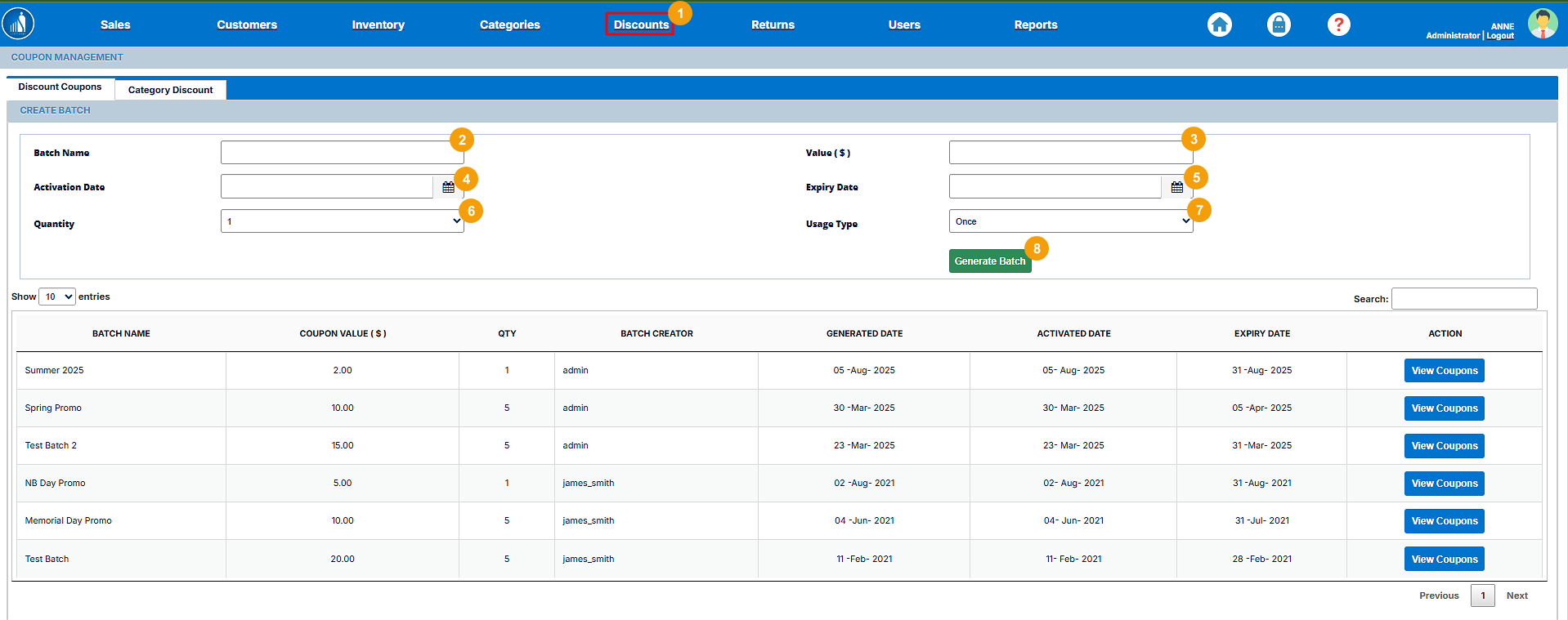
The specified number of coupons will be generated.
How to View an Existing Coupon Batch?
Batch
1.You can easily view details of all previously created coupon batches to track their status, validity, and performance. This helps in monitoring active, expired, or used coupon sets for better promotion management.
To view an existing coupon batch:
-
Go to the Discounts tab.
-
2.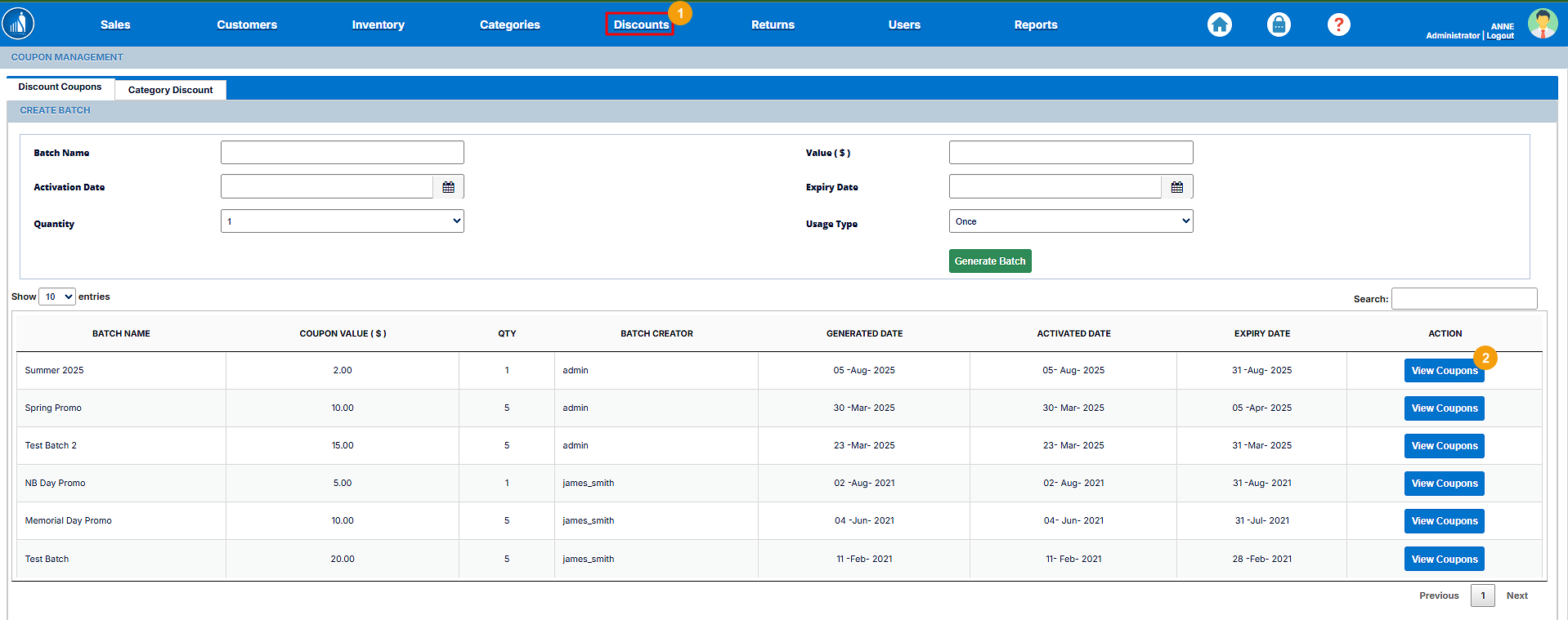
The couponCoupon batchBatch informationInformation will appear on the screenscreen, withshowing itsdetails status.such as:
-
Batch Name
-
Coupon Value
-
Activation and Expiry Dates
-
Usage Type
-
Status (Active or Invalid)
Note: An
invalidInvalid statusmeansindicates that the couponsofin that batch have expired or are no longer redeemable.
Tip: Regularly reviewing coupon batches helps you plan future promotions effectively and ensure only valid coupons are available to customers.

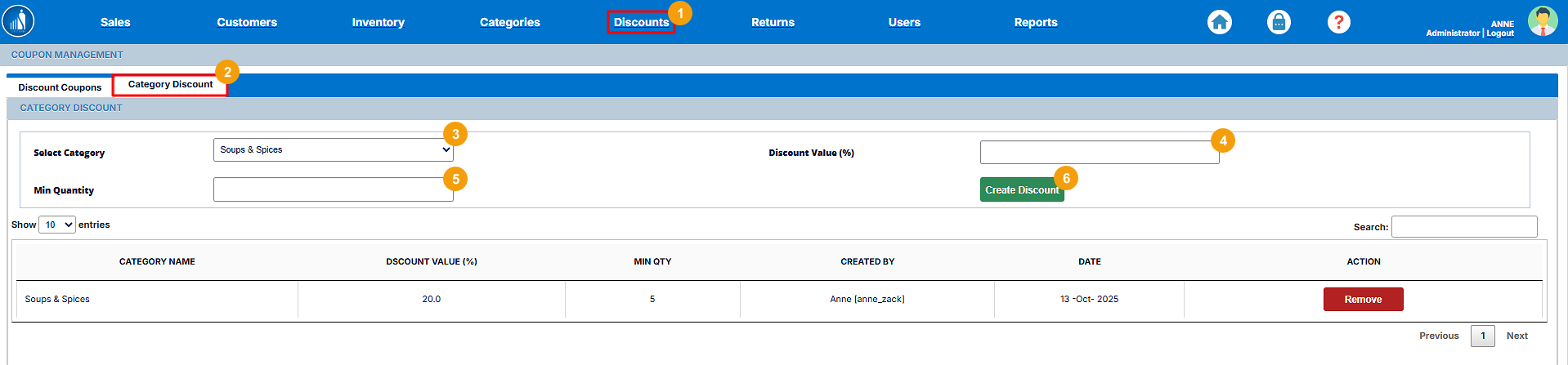
How to Offer Category Discounts?Discounts
IfThe Category Discount feature allows you wishto apply discounts to offerspecific discountsproduct oncategories. particularThis categories,is youuseful canfor followpromoting theseasonal followingitems, steps:clearing stock, or increasing sales within certain product lines.
1.To offer a category discount:
-
Go to the Discounts tab.
-
2..section. -
3.category.Category from the dropdown list. -
4.discountDiscountvalue.Value.Note: The discount value is
in percentage. This means that the discount amount will be calculatedentered as apercentagepercentage.ofFor example, entering “10” applies a 10% discount to all items in theactualselectedamount.category. -
5.minimumMinimumquantity.QuantityThe discount is applied when the customer buys— the number of itemsspecifiedaincustomer must purchase from that category for the discount to apply.
Tip: Category discounts are a great way to encourage bulk purchases or clear old stock. Adjust discount percentages and minimum quantity
section.thresholds based on sales goals or seasonal trends.