Settings
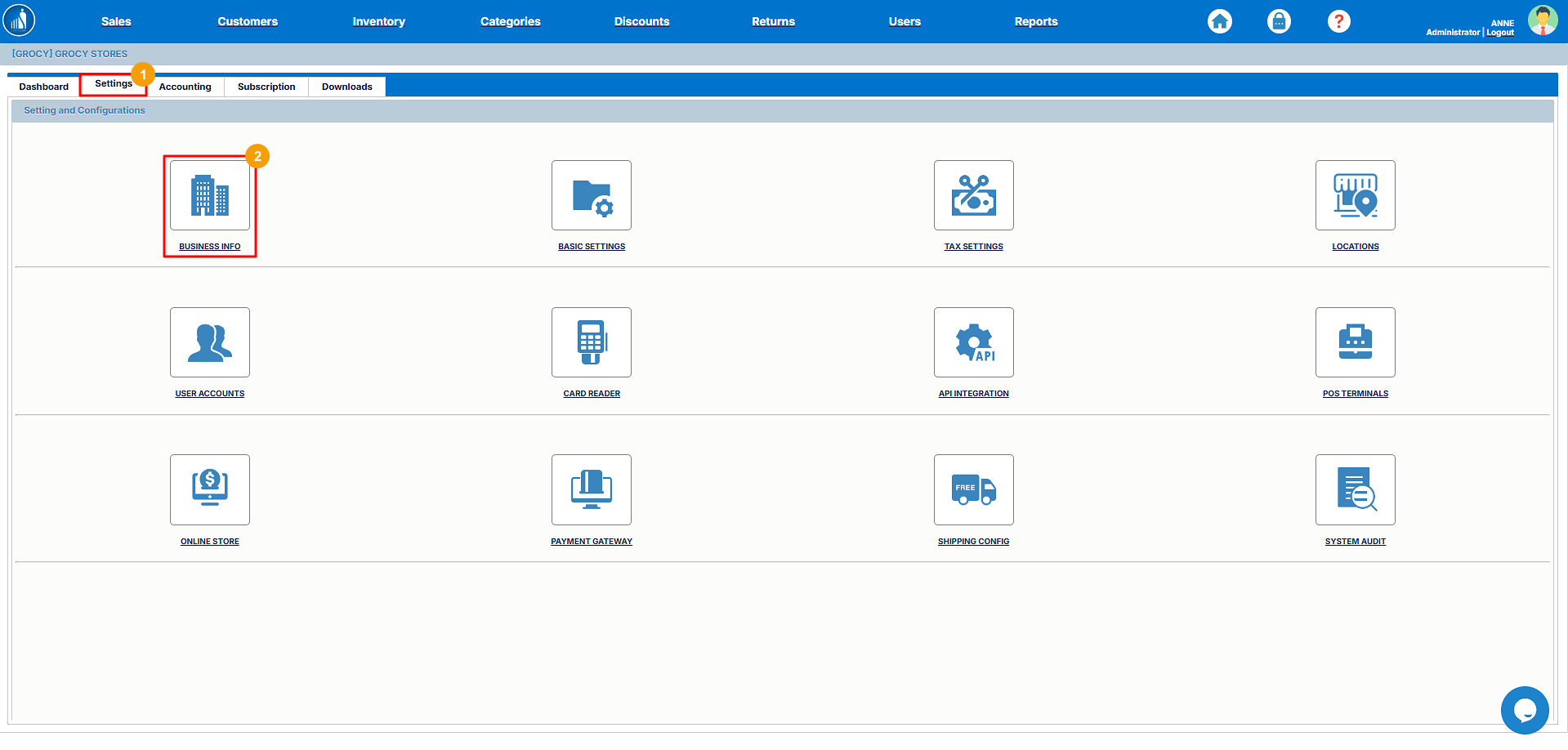
Under the Settings tab on the Dashboard, you can access and manage all configuration options for your Scantranx system. This section allows you to customize how your business operates — from store details and inventory preferences to tax rules and location management.
Through the Settings tab, you can manage:
-
Business Settings: Update company information and contact details.
-
Store Settings: Configure operating hours, payment methods, and POS preferences.
-
Inventory Settings: Adjust stock management options and default units.
-
Location Settings: Add or edit store locations and assign users.
-
Tax Settings: Set up tax rates, classes, and applicable rules.
Let’s explore each of these settings in detail.
Tip: Review your settings periodically, especially after software updates or business changes. Keeping your configurations current ensures smooth operations and accurate data across all modules.
Business Information Settings
The Business Information tab allows you to add and manage your company’s essential details. This information appears on sales receipts, invoices, and reports, ensuring your branding and contact details are consistent across all customer-facing documents.
Add Business Information
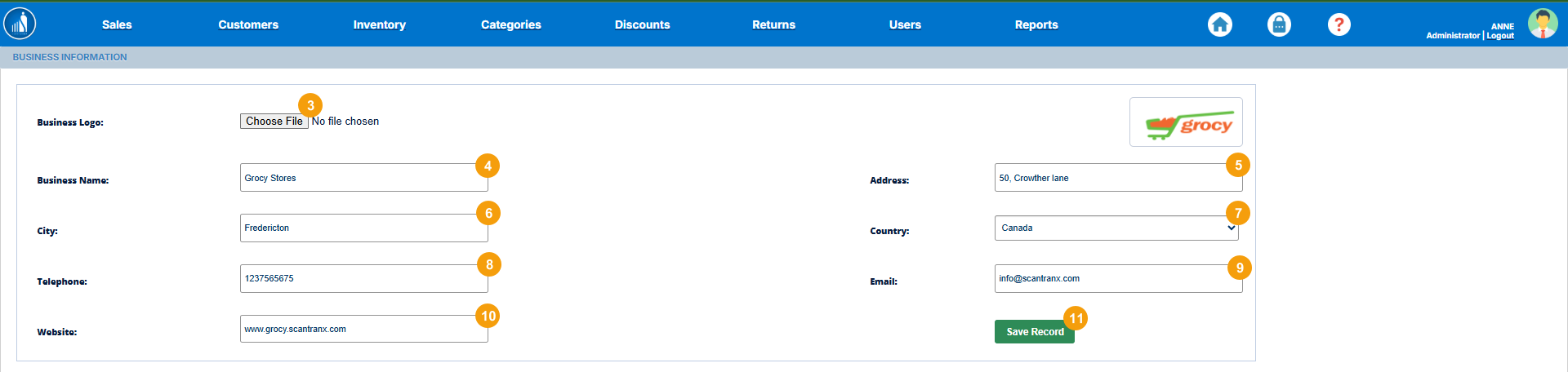
You can enter or update your business details in the Business Info section under Settings. This information will appear on all receipts, invoices, and system-generated reports.
To add business information:
-
Switch to the Settings tab.
-
Select the Business Info card.
-
Upload your Business Logo.
-
Enter the Business Name.
-
Add the Business Address.
-
Enter the City.
-
Select the Country.
-
Enter the Telephone Number.
-
Add the Email Address.
-
Add the Website Link (optional).
-
Click on Save Record to apply the changes.
Tip: Ensure your business details are accurate and complete. A professional logo and up-to-date contact information help reinforce brand credibility and improve customer trust.
Basic Settings
The Basic Settings section allows you to configure the general settings for your business. These settings help customize your system according to your region, business type, and operational preferences.
Under Basic Settings, you can define key parameters such as:
-
Business Category: Specify the industry or type of business (e.g., Retail, Fashion, Electronics).
-
Currency: Select your preferred currency for transactions and reports.
-
Time Zone: Choose the correct time zone to ensure accurate reporting and transaction timestamps.
-
Language (if applicable): Choose the language for your interface and reports.
Tip: Always set the correct currency and time zone during initial setup. This ensures consistency in reports, pricing, and transaction data across all store locations.
Setting Up Basic Settings
You can configure the general preferences for your business under the Basic Settings section. These settings define how your system operates, displays information, and sends notifications.
To set up basic settings:
-
Go to the Settings tab.
-
Select Basic Settings.
-
Select your Business Type (e.g., Retail, Restaurant, or Service).
-
Choose the appropriate Time Zone.
-
Select your preferred Currency.
-
Enter the Notification Number (used for system alerts or updates).
-
Enter the Notification Email to receive important notifications.
-
Click Save Record to apply the changes.
Tip: Keeping your notification details up to date ensures that you don’t miss important alerts about transactions, stock updates, or system activities.
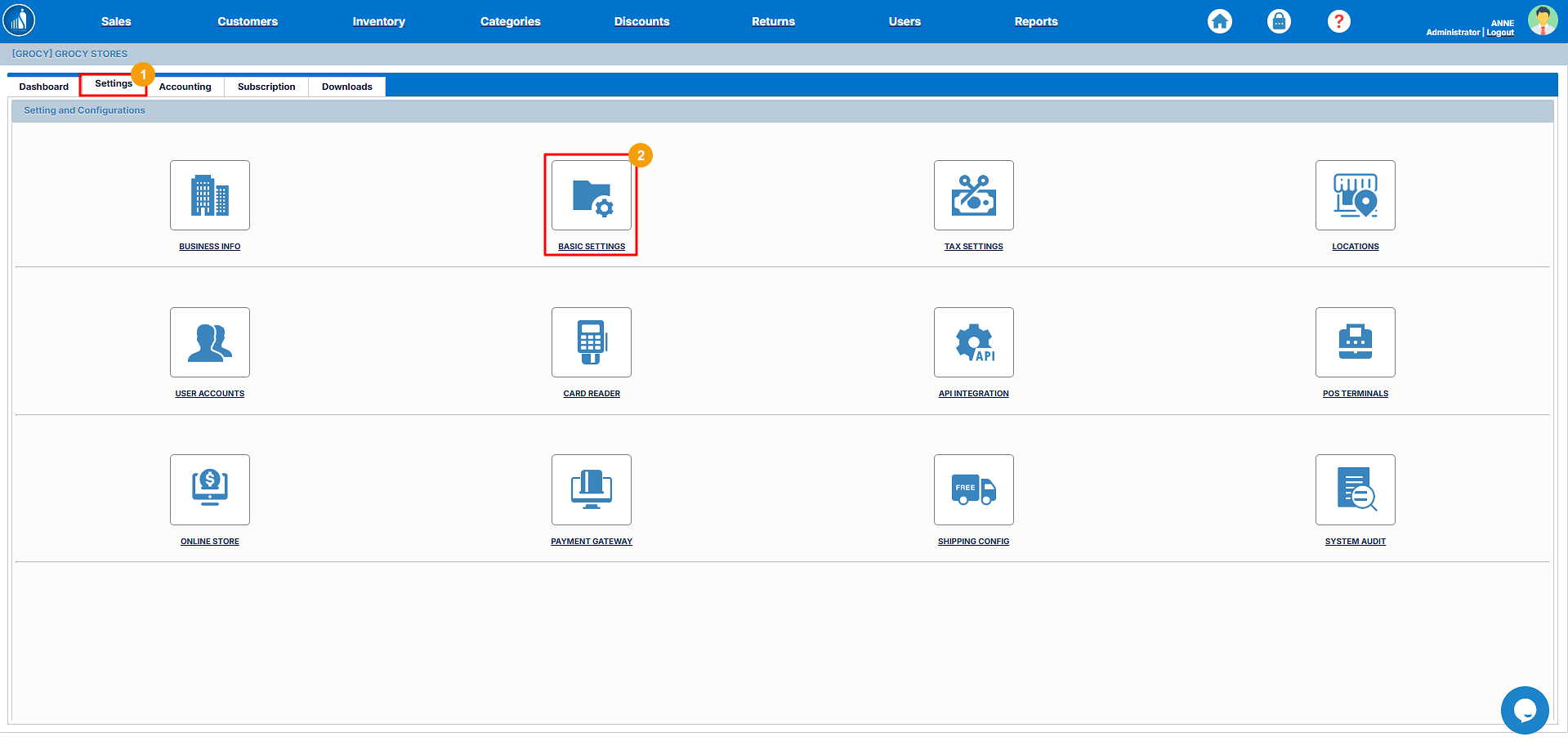

Tax Settings
The Tax Settings section allows you to add and manage tax information for your business. Configuring taxes correctly ensures that all sales transactions, invoices, and reports reflect accurate tax calculations based on your local regulations.
Through this section, you can:
-
Add one or multiple tax types (e.g., VAT, GST, Sales Tax).
-
Set tax rates according to your region.
-
Define whether taxes are included in prices or added at checkout.
-
Assign tax classes to specific products or categories.
Tip: Always verify your tax rates with your local tax authority or accountant to ensure compliance. Keeping tax settings accurate helps avoid reporting discrepancies and supports smooth accounting integration.
How to Add a New Tax
You can create and manage tax types applicable to your business from the Tax Settings section. Adding tax information ensures that the correct tax rate is applied automatically during sales transactions.
To add a new tax:
-
Go to the Settings tab.
-
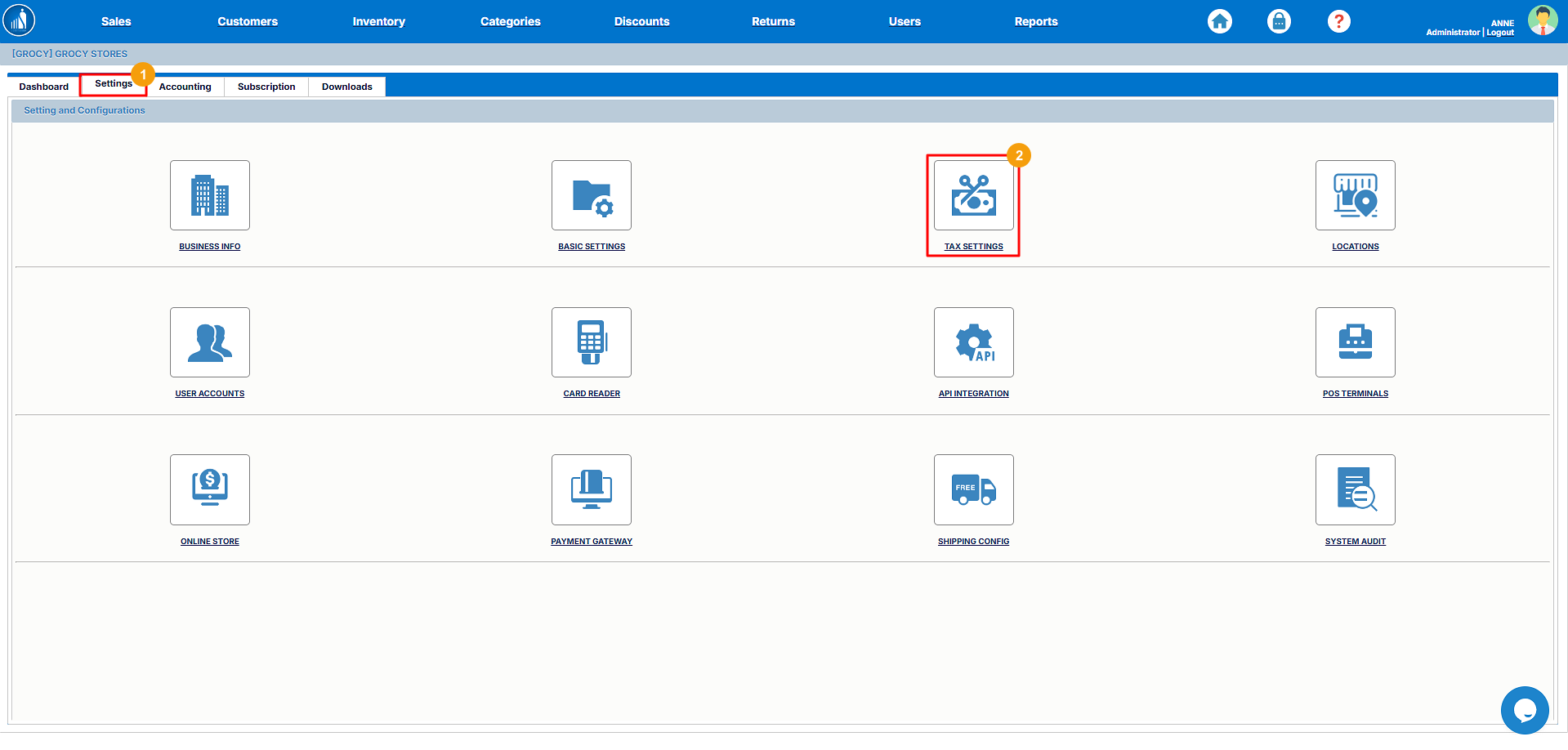
Select Tax Settings.
-
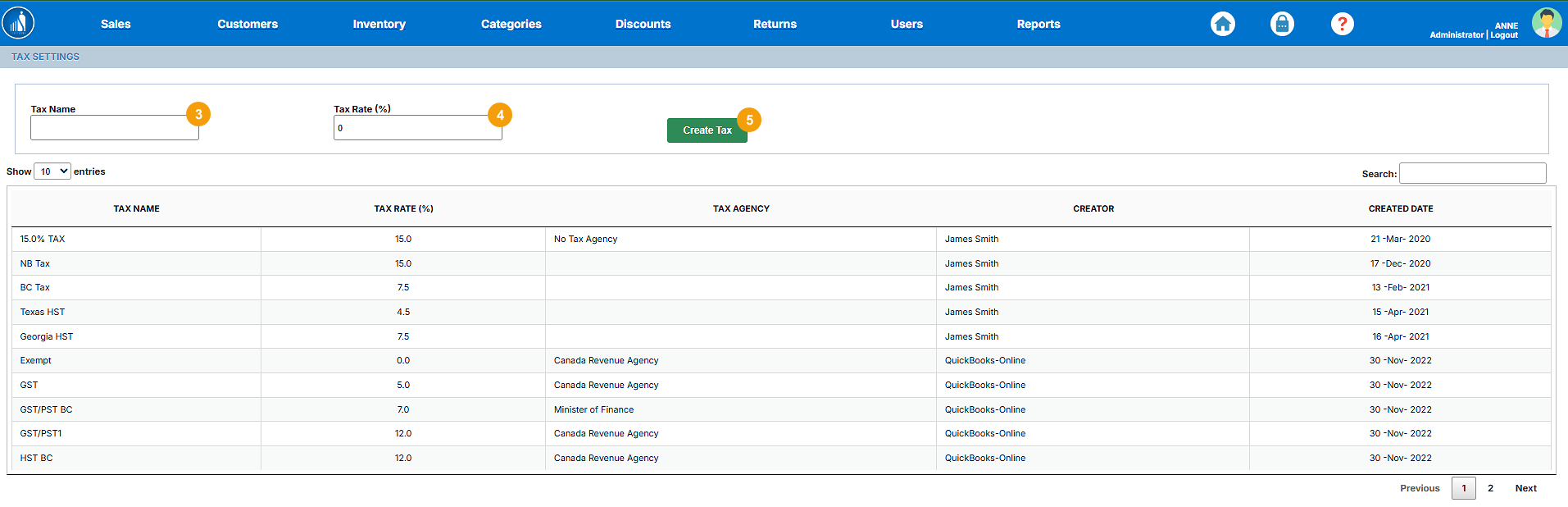
Enter the Tax Name (e.g., VAT, GST, or Sales Tax).
-
Enter the Tax Rate as a percentage.
-
Click Create Tax.
The new tax will be added to the table below. The table displays all existing taxes along with their Tax Agency, Created By, and Creation Date for reference.
Tip: Use clear tax names and accurate percentages to avoid confusion during reporting. You can create multiple tax types if your business operates in different regions or requires combined tax calculations.
Location Settings
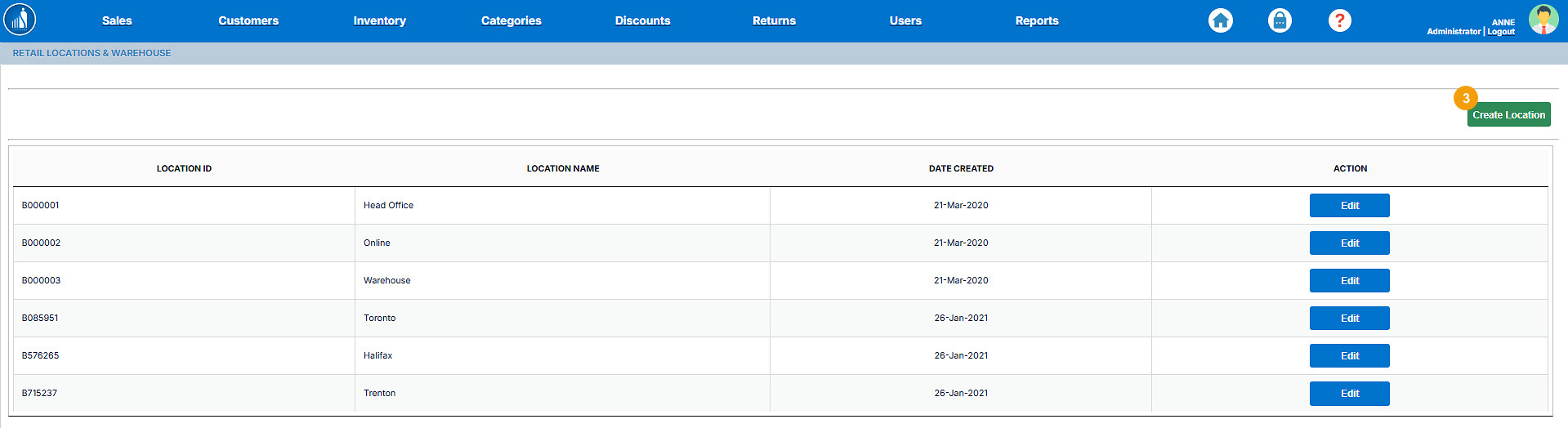
The Location Settings section allows you to add and manage the different locations where your business operates. Each location represents a physical store, warehouse, or branch. Configuring locations helps track sales, inventory, and users separately for each branch.
In this section, you can:
-
Add new locations as your business expands.
-
Edit existing locations to update contact details or addresses.
Tip: Setting up separate locations for each store or warehouse allows you to maintain accurate stock tracking, sales analysis, and employee management across multiple branches.
How to Add a New Location
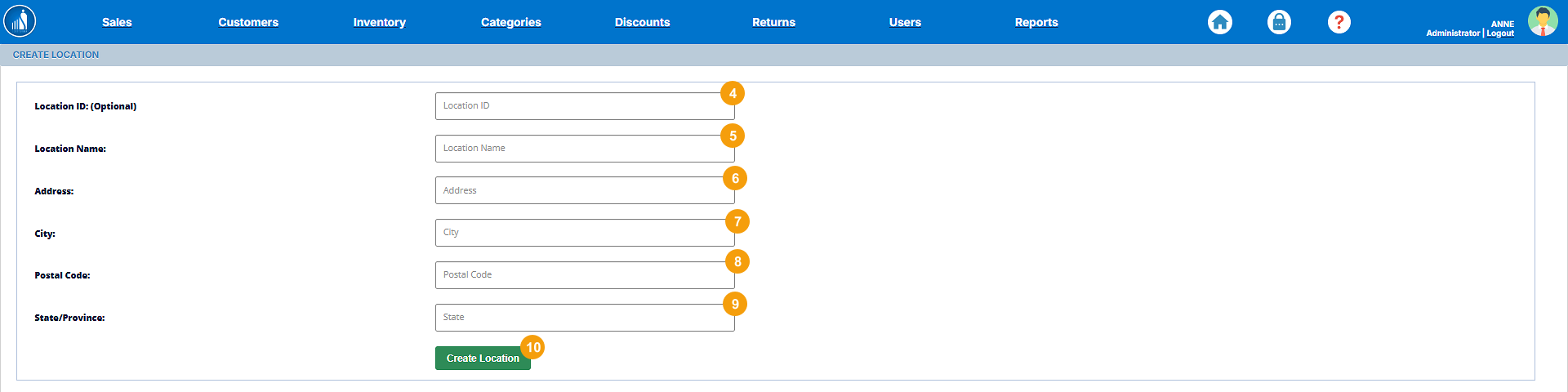
You can add new store branches, warehouses, or sales points directly from the Locations section under Settings. Each location can have its own users, inventory, and sales records for better tracking and reporting.
To add a new location:
-
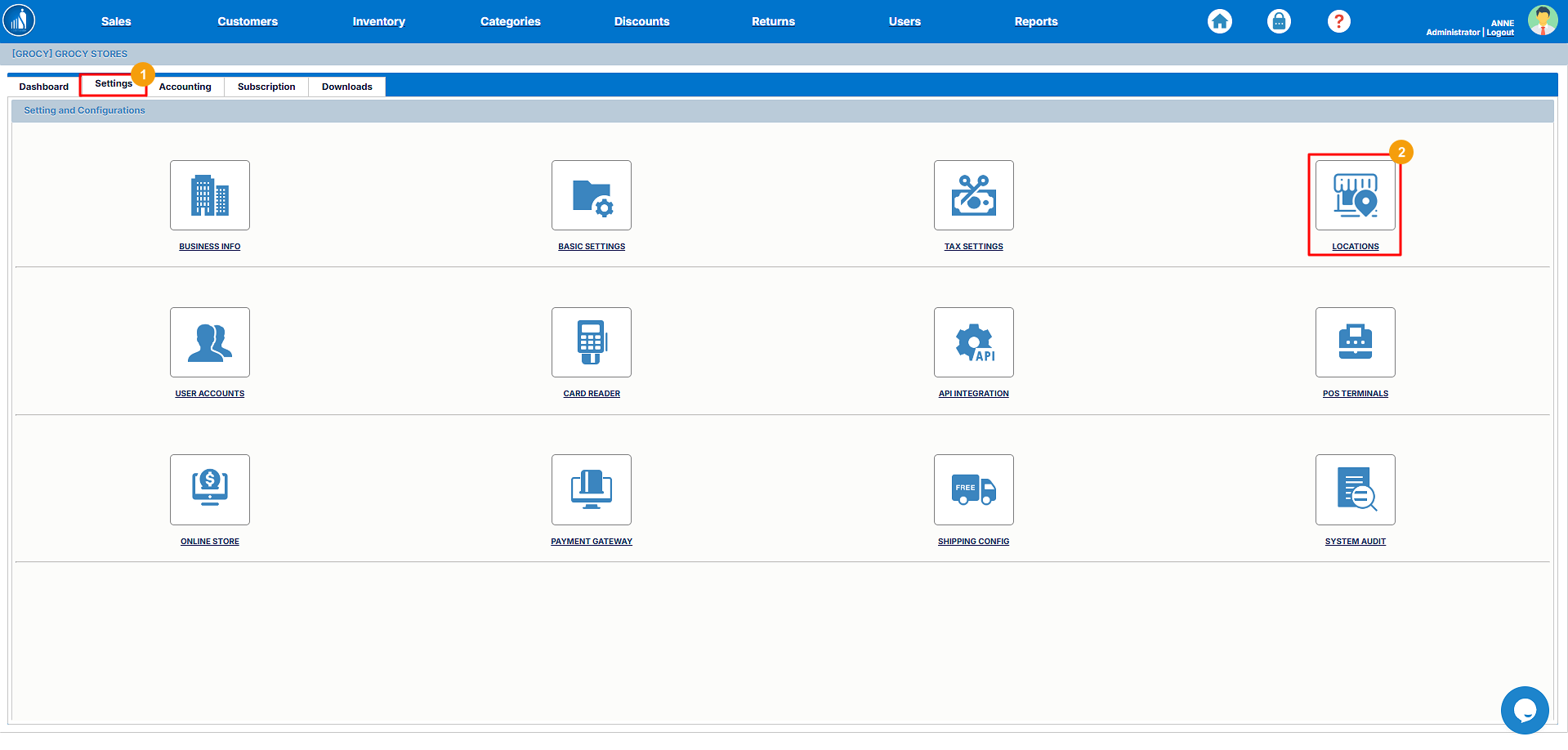
Go to the Settings tab.
-
Select Locations.
-
Click on the Create Location button.
-
Enter the Location ID.
-
Enter the Location Name.
-
Enter the Location Address.
-
Enter the City.
-
Enter the Postal Code.
-
Enter the State or Province for your branch.
-
Click Create Location to save it.
The new location will automatically start appearing across other modules, such as Inventory, Sales, and Reports, allowing you to manage operations by location.
Tip: Use clear and consistent naming for locations (e.g., Downtown Store, Warehouse A) to make reporting and management more organized.
How to Edit Existing Locations
You can update details of existing store locations to keep your business information accurate. This is useful when a branch changes address, contact details, or other operational information.
To edit an existing location:
-
Go to the Settings tab.
-
Select Locations.
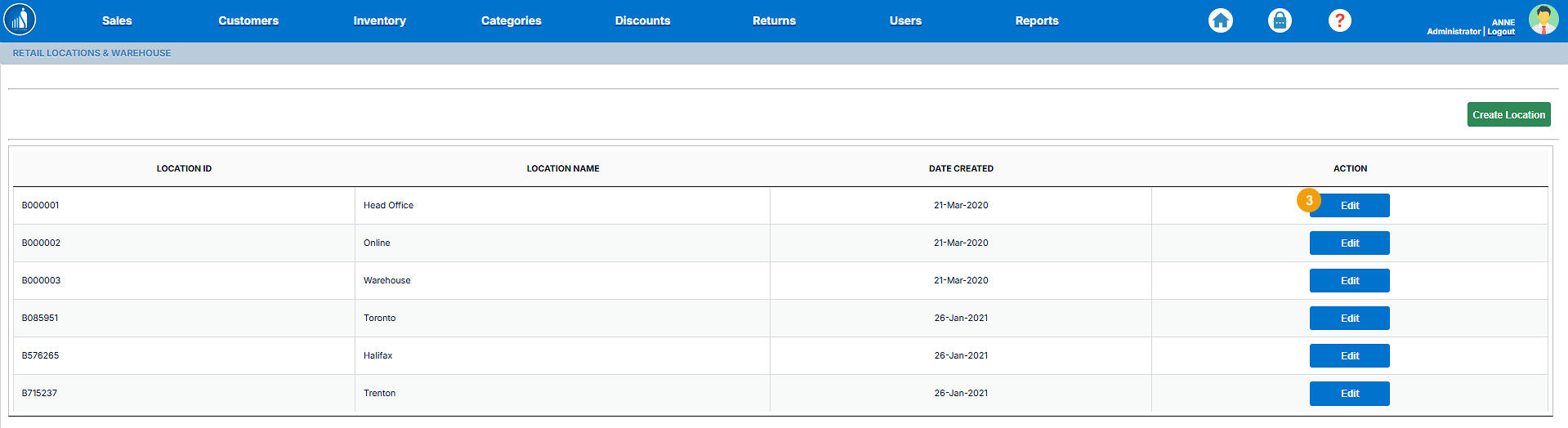
-
Click on the Edit button next to the location you want to modify.
-
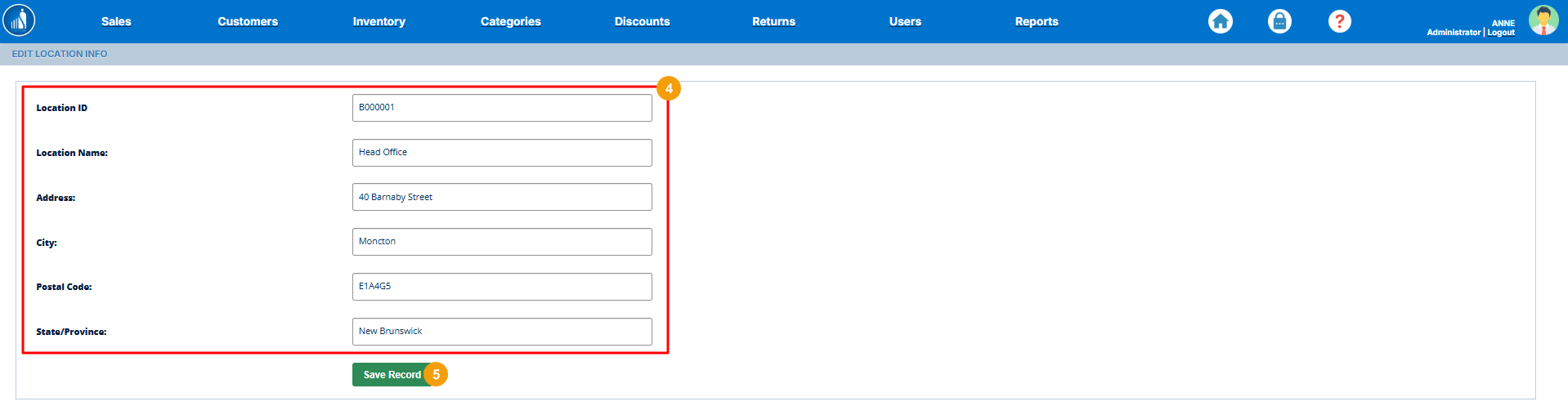
Make the necessary changes to the Location Details (e.g., name, address, city, postal code, or state).
-
Click Save Record to apply the updates.
Tip: Keep location details current to ensure accurate reporting and smooth coordination across branches. Updated information also reflects correctly on invoices, receipts, and internal reports.
User Accounts Settings
The User Accounts Settings section provides the same functionality as the Users tab on the main dashboard. It allows administrators to create, edit, and manage user accounts, as well as define their roles and access permissions within the system.
From this section, you can:
-
Add new users and assign roles.
-
Modify existing user details or permissions.
-
Reset user passwords.
-
Deactivate or delete user accounts.
This section provides centralized control over all user-related configurations, ensuring that each employee has appropriate system access according to their responsibilities.
Tip: Review user roles regularly to maintain system security and prevent unauthorized access to sensitive business data. Please refer to the Managing Users section for a detailed demonstration.
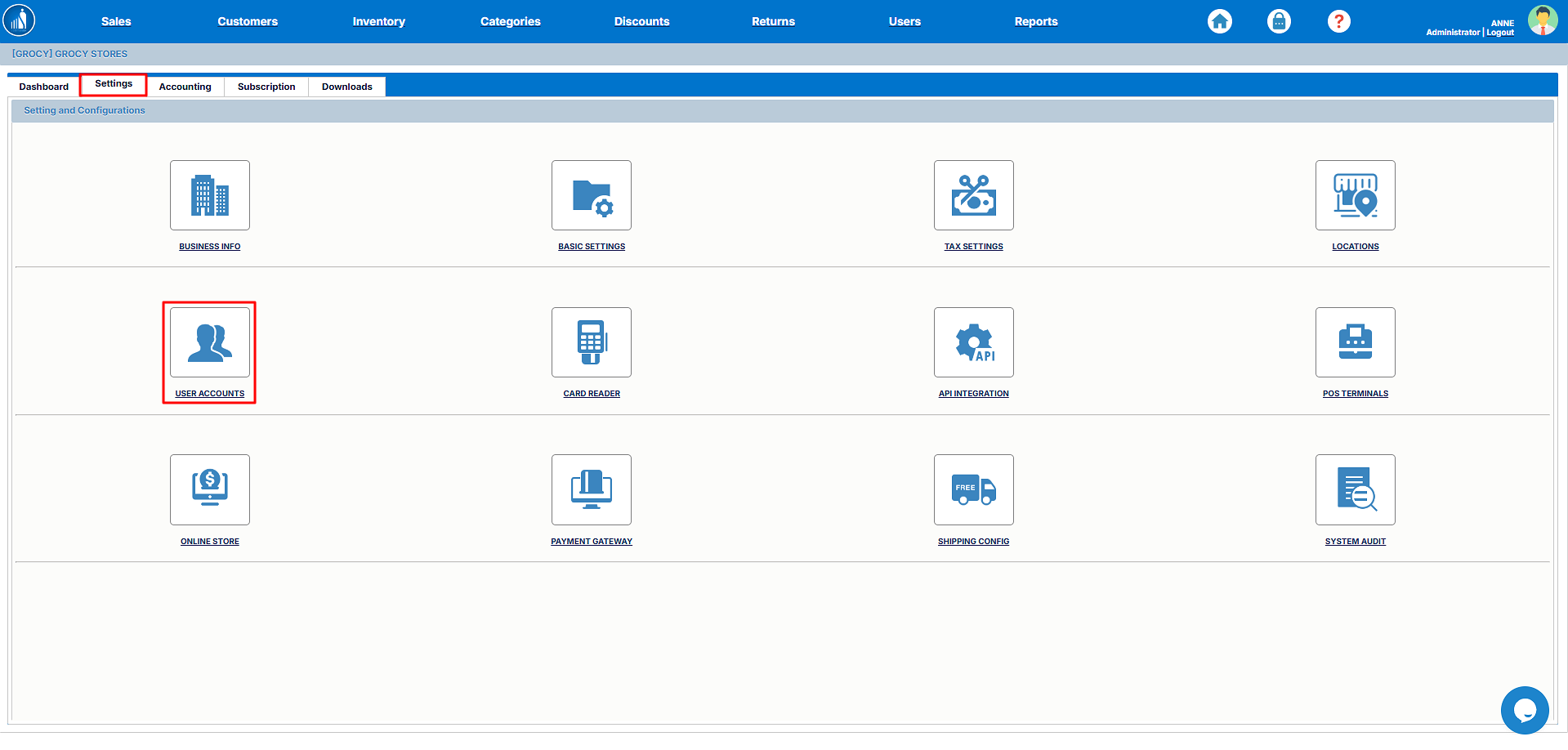
Card Reader Settings
The Card Reader Settings section allows you to set up and configure your card reader machines to accept card payments directly at the Point of Sale (POS). Proper configuration ensures smooth and secure transactions for your customers.
In this section, you can:
-
Connect supported card reader devices to your POS.
-
Configure payment gateway integration (e.g., Stripe, Elavon).
-
Set default payment modes for card transactions.
-
Test connectivity between the POS system and card reader.
Tip: Ensure your card reader is compatible with Scantranx and connected via USB, Bluetooth, or Wi-Fi (depending on the model). Always test the setup before processing live transactions to avoid payment disruptions.
How to Configure a New Card Reader
You can connect and configure a new card reader device under the Card Reader settings to enable secure and seamless card payment processing at your POS terminals.
To configure a new card reader:
-
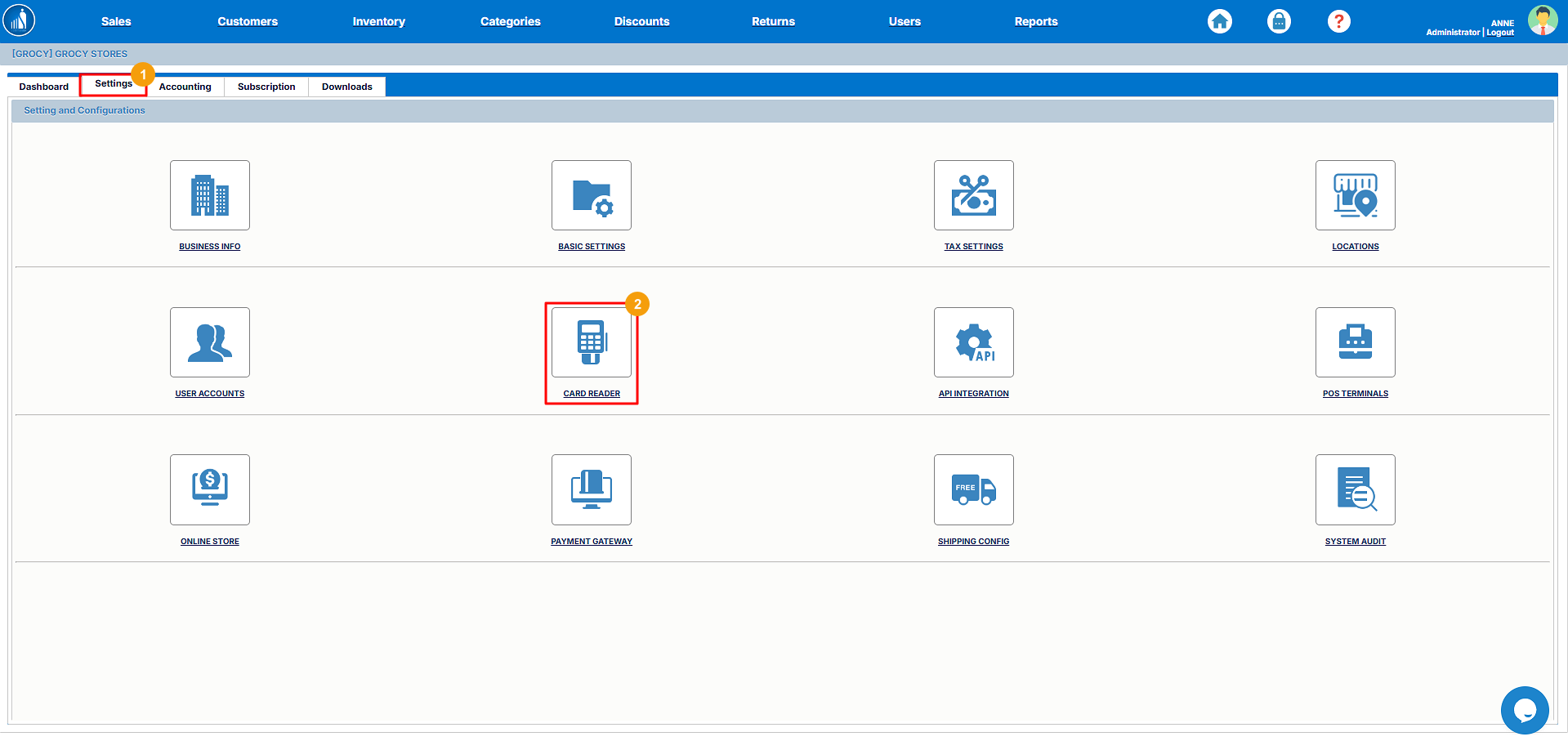
Switch to the Settings tab.
-
Select Card Reader.
-
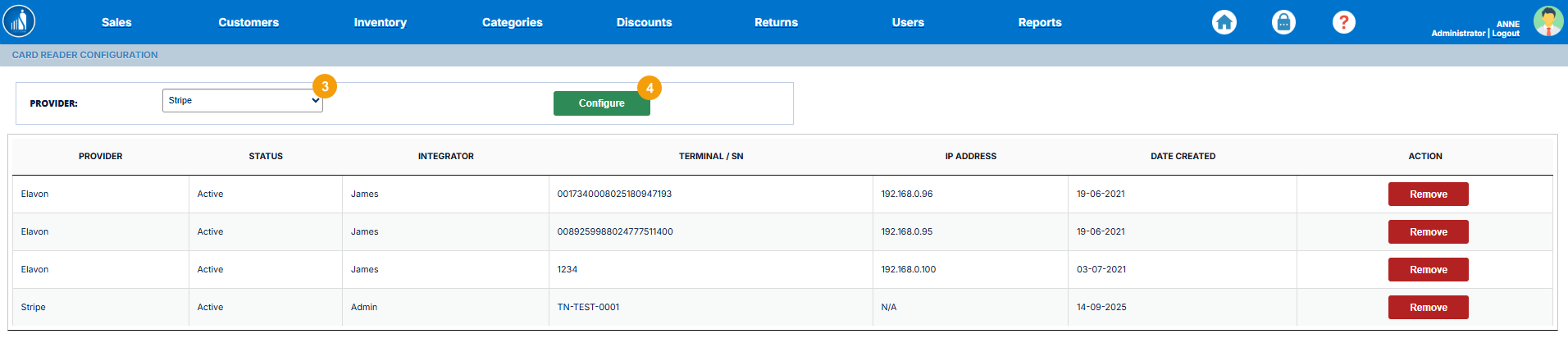
Select a Provider (e.g., Stripe Terminal, Elavon, or other supported gateways).
-
Click on Configure.
-
Enter the Terminal ID provided by your payment processor.
-
Enter the Pairing Token to link the device.
-
Select the Location where the card reader will be used.
-
Click Configure to complete the setup.
The new card reader will now be successfully configured and ready for use at the POS.
Tip: Always verify the pairing token and terminal ID with your payment provider to ensure secure integration. After configuration, perform a test transaction to confirm successful connectivity.

How to Remove an Existing Card Reader
If a card reader is no longer in use or needs to be replaced, you can easily remove it from the system through the Card Reader settings. This helps keep your connected devices list accurate and secure.
To remove an existing card reader:
-
Go to the Settings tab.
-
Select Card Reader.
-
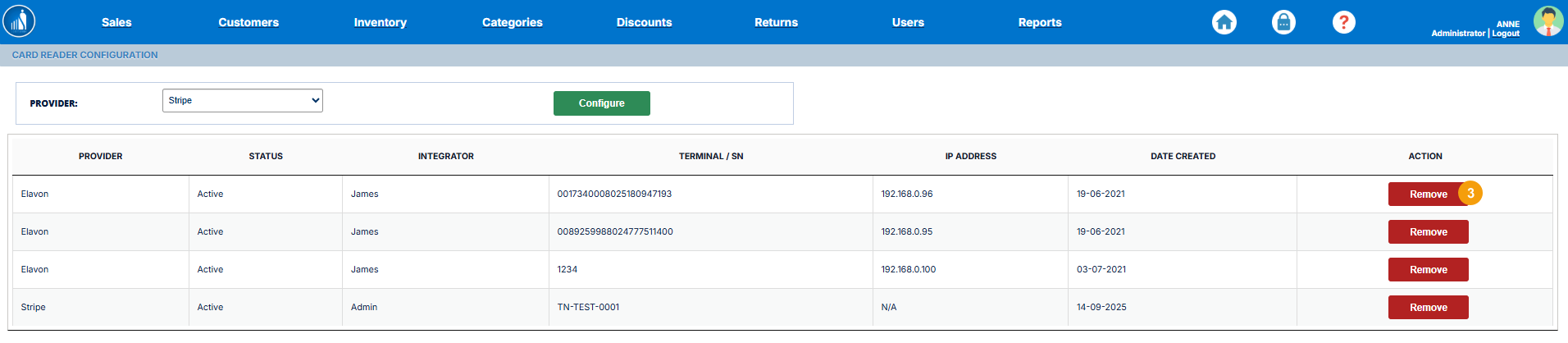
Click on the Remove button next to the card reader machine you wish to disconnect.
The selected card reader will be removed from the system and will no longer be available for POS transactions.
Tip: Remove inactive or replaced card readers promptly to prevent connection errors and ensure that only authorized devices are available for payment processing.
API Integration Settings
ScanTranx allows you to integrate third-party applications using API keys. You can generate a unique key for each application.
How to Generate an API Key?
1. Go to the Settings tab.
2. Click on API Integration.
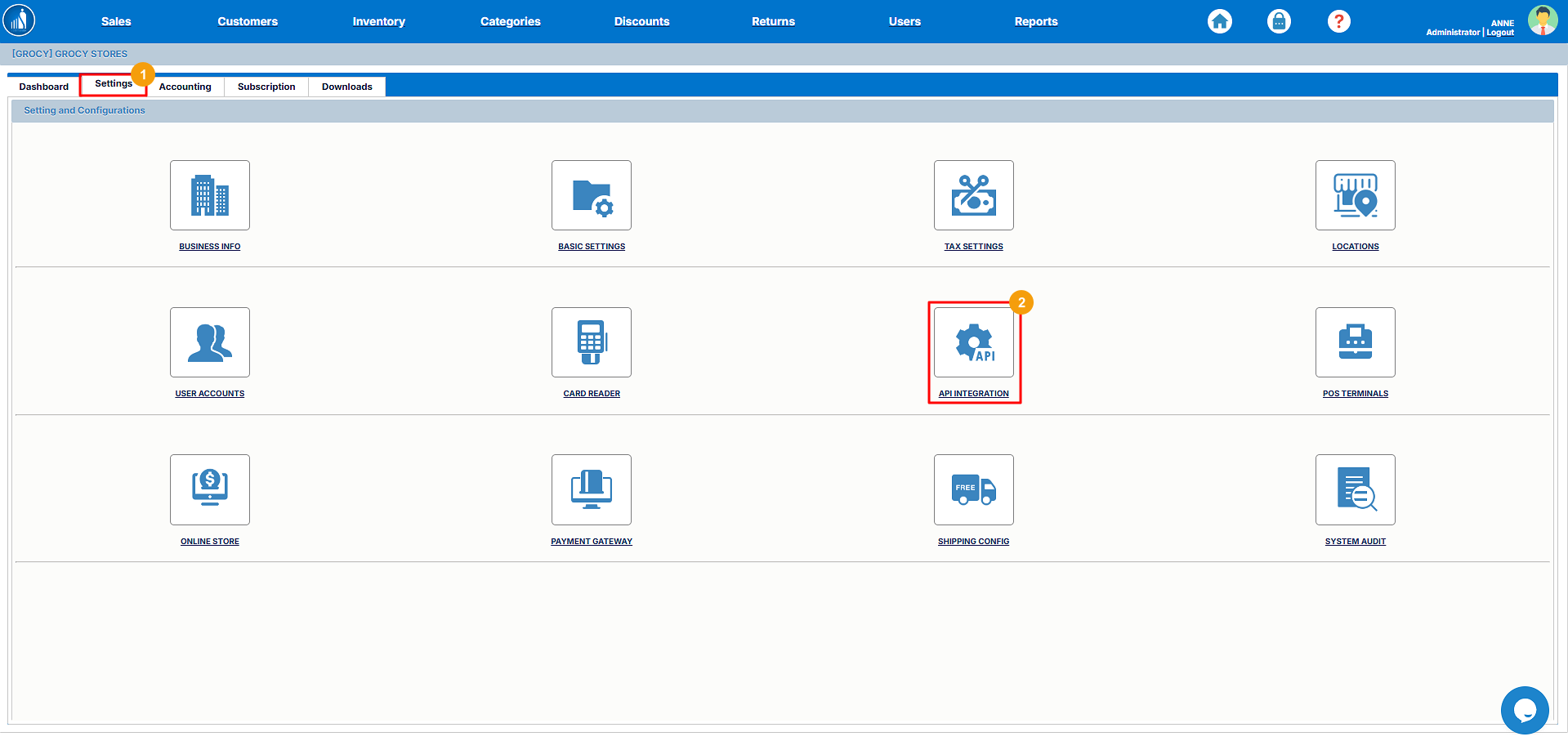
3. Enter the client name.
4. Click Generate Key.
5. To view the key, click on the View link.

How to Revoke an API Key?
1. Go to the Settings tab.
2. Click on API Integration.
3. Click on the Revoke Key button.

The key will no longer be accessible to the client.
POS Terminals
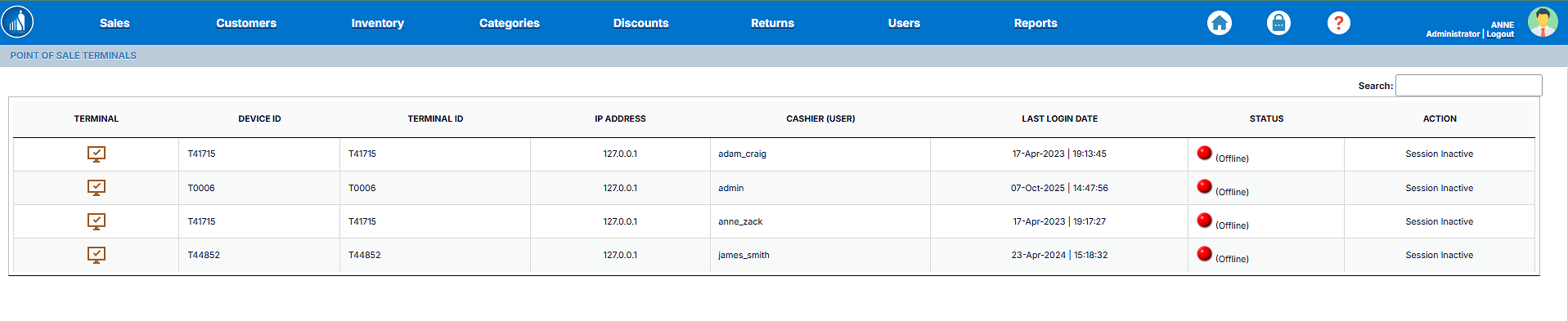
You can view all the configured POS terminals under the POS Terminals settings.
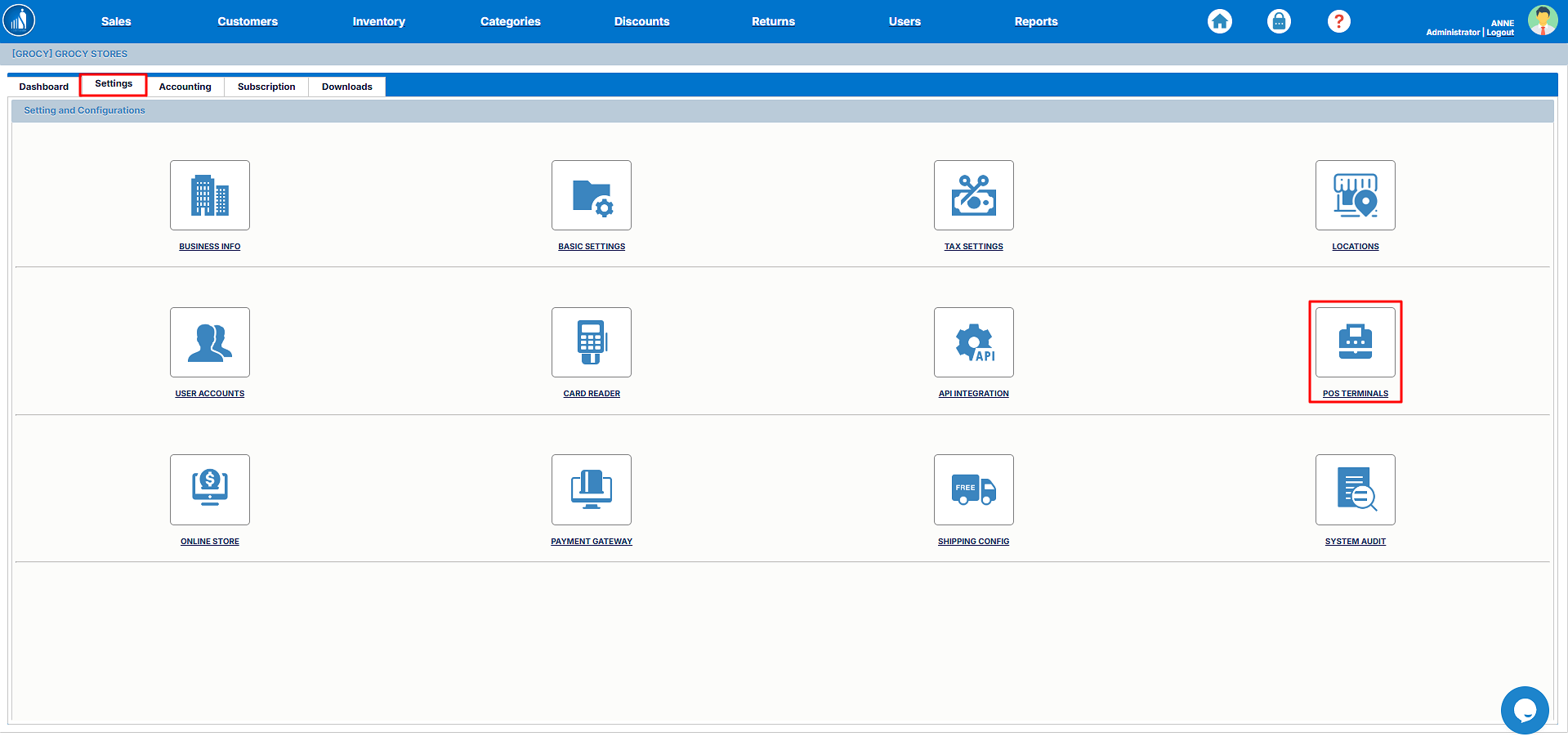
It allows you to monitor which terminal is currently online, as well as the last login date.
Online Store Settings
The Online Store settings allow you to configure and manage your online store. You can set up the look and feel of your store from this tab.
How to Set up the Online Store?
1. Go to the Settings tab.
2. Select Online Store.
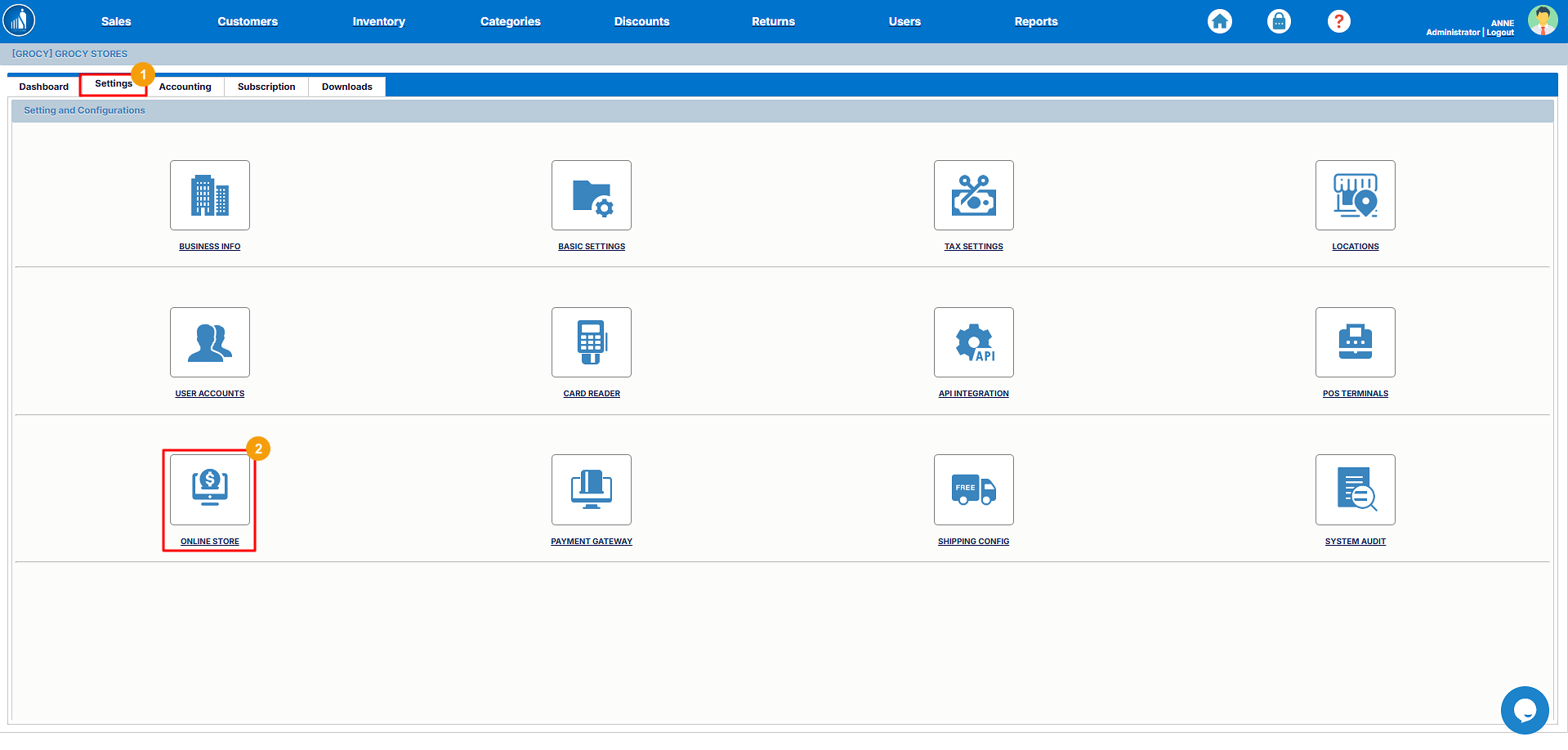
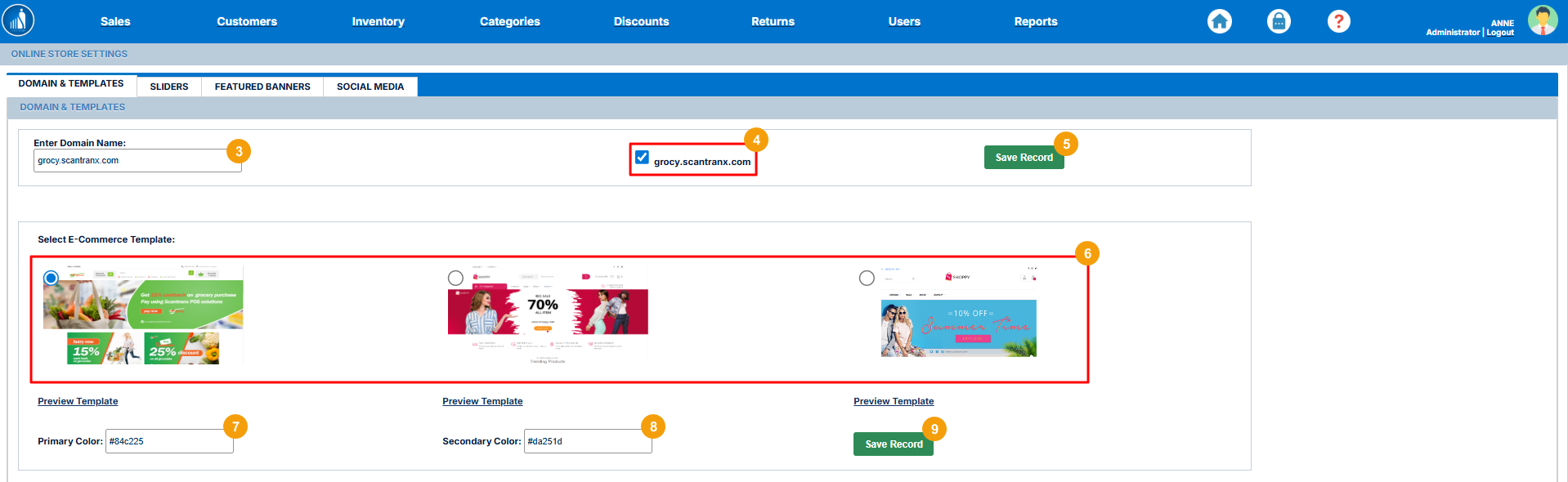
3. Under the Domain and Templates tab, enter your domain name.
4. Enable/disable the store by selecting/deselecting the link.
5. Click on Save Record.
6. Now, select the E-commerce Template.
Tip: You can preview the template by clicking on the Preview Template link below each template.
7. Specify the primary color.
8. Specify the secondary color.
9. Click Save Record.
How to Add Sliders?
1. Go to the Settings tab.
2. Select Online Store.
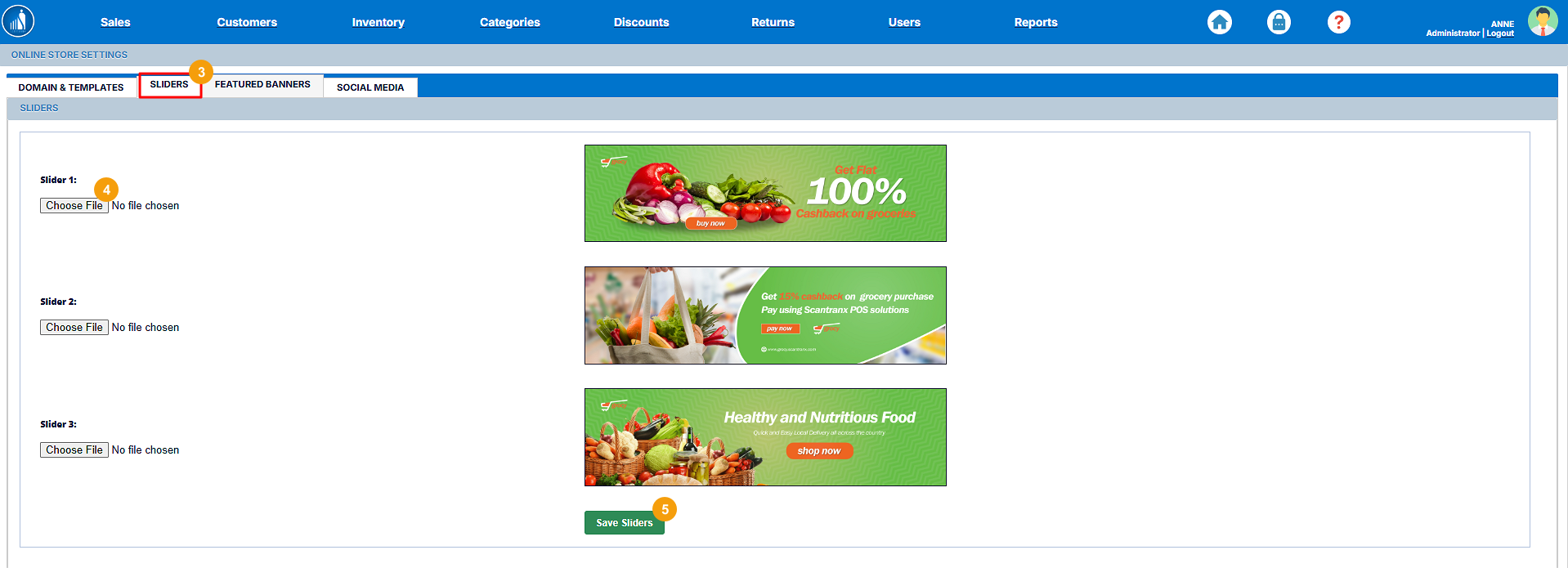
3. Switch to the Sliders tab.
4. Click on Choose File and select the slider image.
You can upload up to 3 images.
5. Click Save Sliders.
How to Add Featured Banners?
1. Go to the Settings tab.
2. Select Online Store.
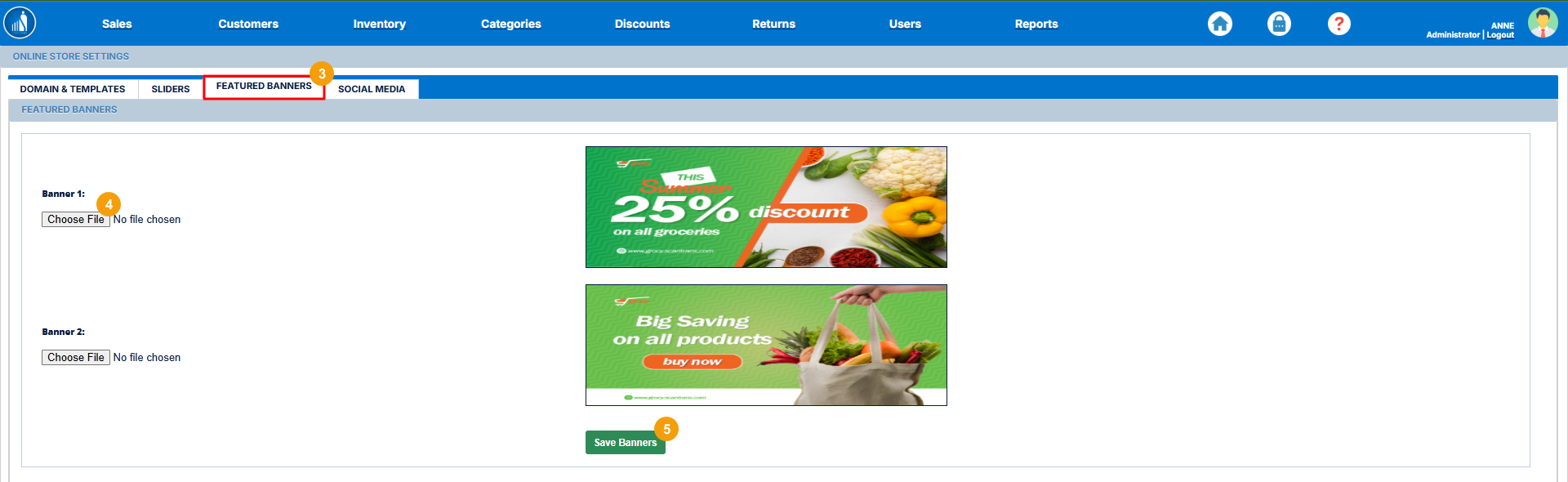
3. Switch to the Featured Banners tab.
4. Click on Choose File and select the banner image.
5. Click Save Banners.
How to Add Social Links?
1. Go to the Settings tab.
2. Select Online Store.
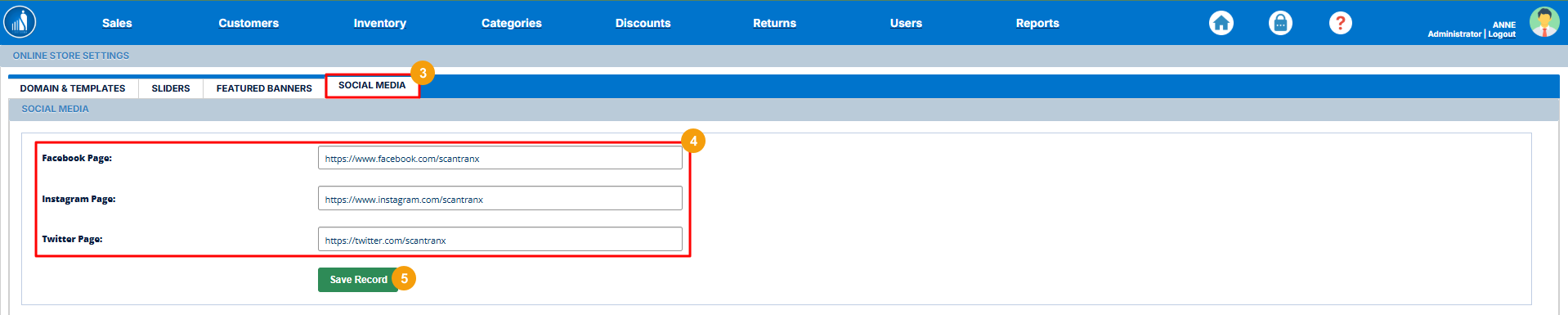
3. Switch to Social Media.
4. Enter the links to your social platforms.
5. Click Save Record.
Payment Gateway Settings
You can configure the gateways through which you want to receive the online payments under the Payment Gateways settings.
How to Configure a Payment Gateway?
1. Go to the Settings tab.
2. Select Payment Gateways.
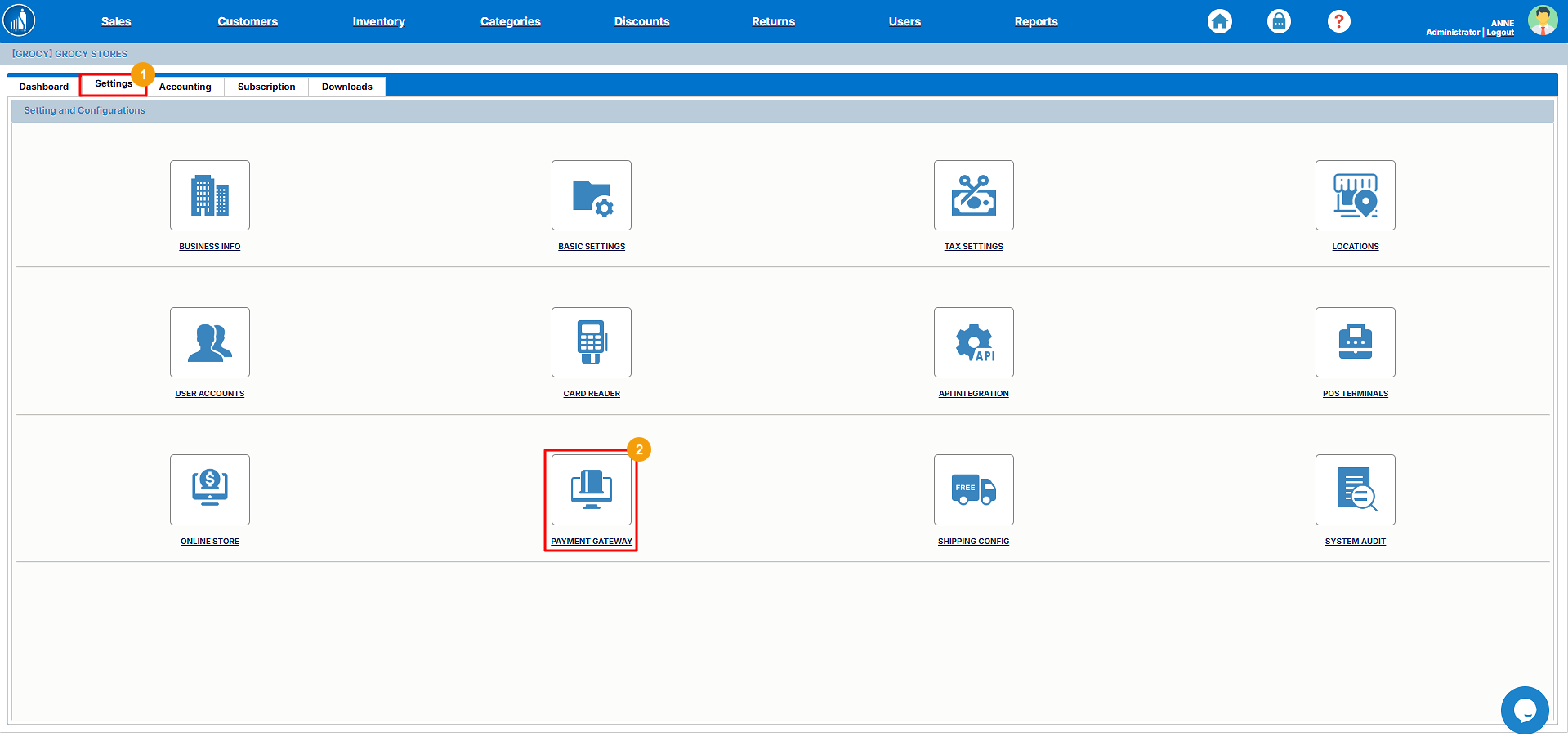
3. Select a payment gateway.
4. Click Configure.

5. Enter the public key.
6. Enter the secret key.
7. Click Configure Gateway.

Please note that in order to configure a payment gateway, you must have a valid public and secret key. You can get these keys by signing up for your desired payment service providers.
How to Delete an Existing Gateway?
1. Go to the Settings tab.
2. Select Payment Gateways.
3. Click Remove before the gateway.

Shipping Configuration Settings
To set up your shipping methods for online deliveries, you can configure them under the Shipping Config settings.
Basic Shipping Settings
Under the general shipping settings, you can select a shipping plan and other options. The available shipping plans include:
i. Weight-Based: The shipping is calculated according to the weight of the parcel.
ii. Price-Based: The shipping cost is calculated according to the price of the parcel.
To set up shipping preferences, follow these steps:
1. Go to the Settings tab.
2. Select Shipping Config.
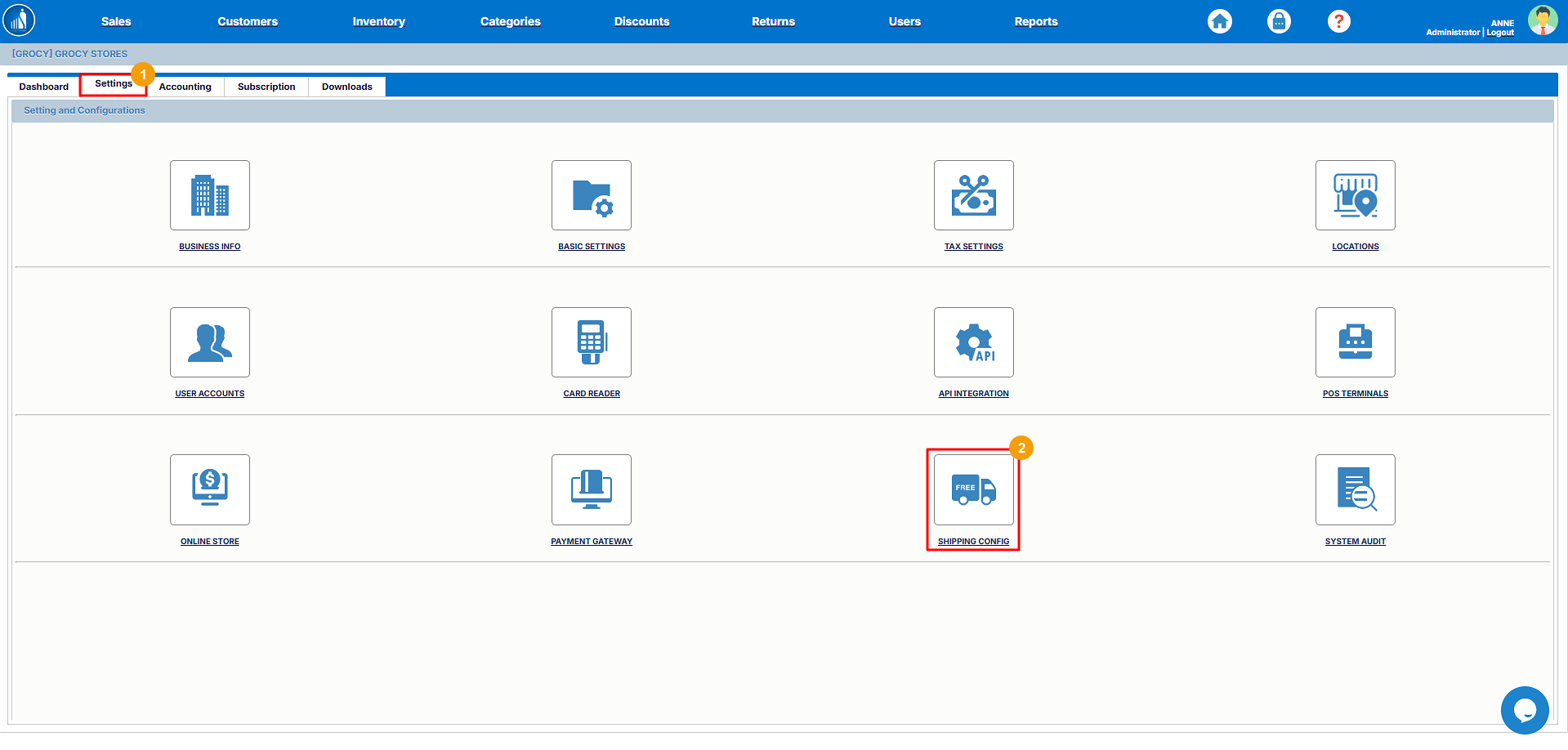
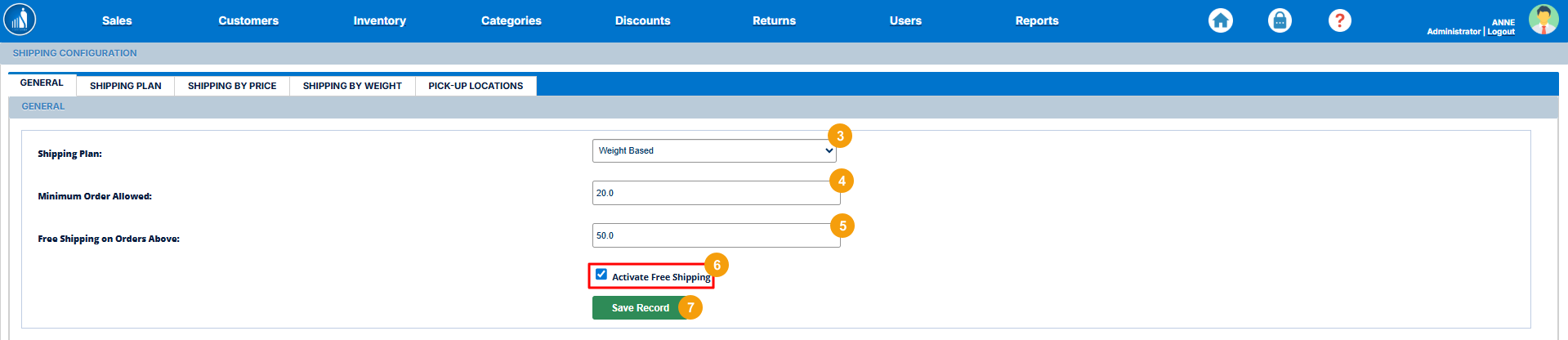
3. Select a shipping plan.
4. Enter the minimum weight or price for the order.
The checkout will not proceed unless the order matches this weight or price.
5. Enter the limit for free shipping.
If the order exceeds this limit, shipping becomes free.
6. Select whether to apply free shipping or not.
7. Click on Save Record.
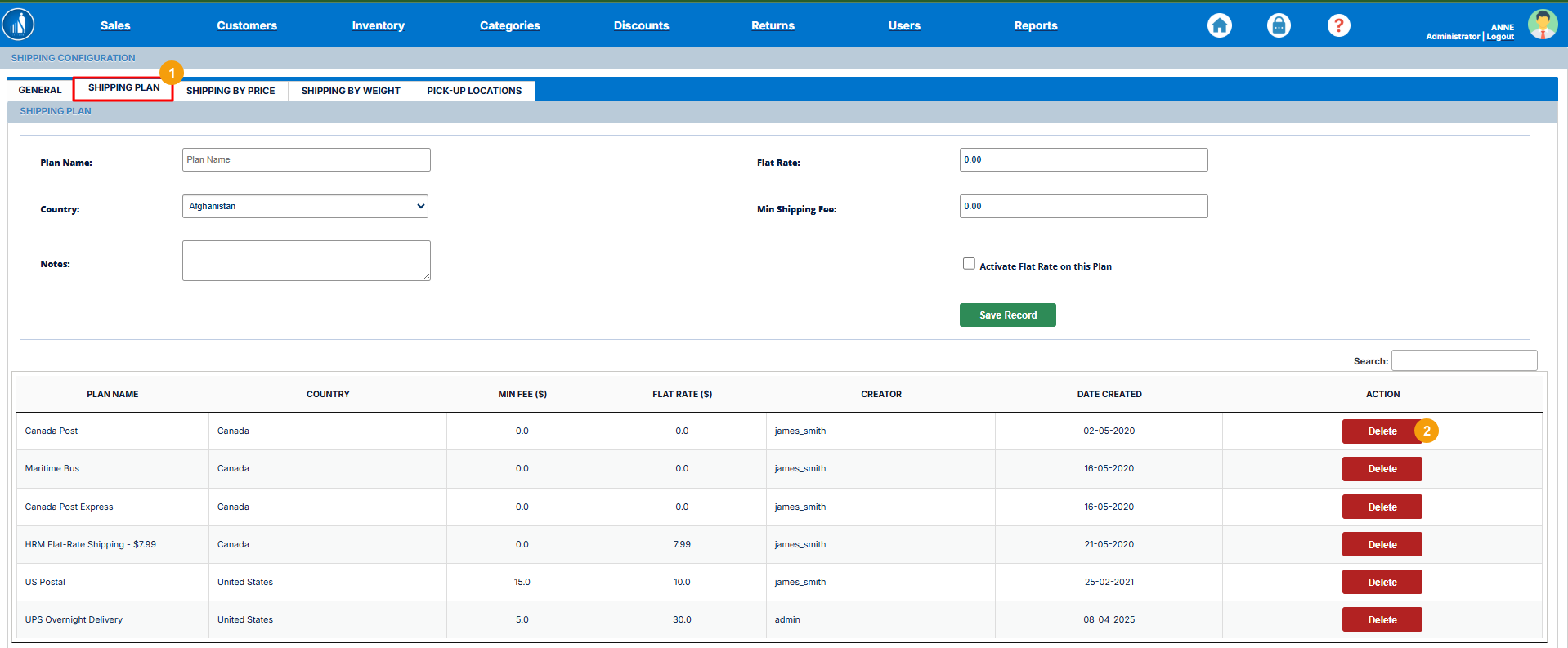
How to Add a New Shipping Plan?
The Shipping Plans refer to the shipping services available in specific locations.
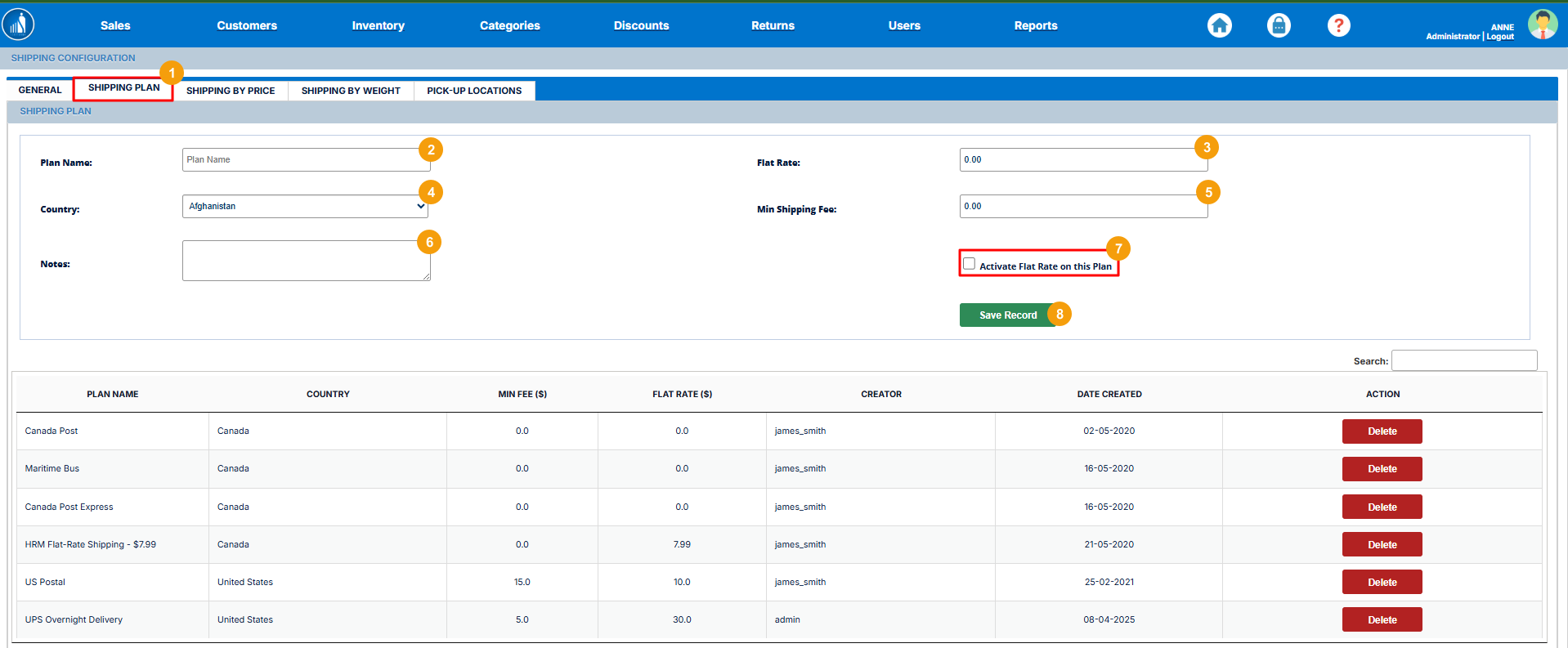
1. Switch to Shipping Plan under Shipping Config.
2. Enter the plan name.
3. Enter the flat rate.
4. Select the country for which the shipping plan is valid.
5. Enter the minimum shipping fee.
6. Add notes.
7. Activate or deactivate the flat rate.
When enabled, all the shipments will cost the same regardless of the destination.
8. Click Save Record.
How to Delete an Existing Shipping Plan?
1. Switch to the Shipping Plan tab under Shipping Config.
2. Click on the Delete button before the shipping plan.
How to Set Up Shipping By Price?
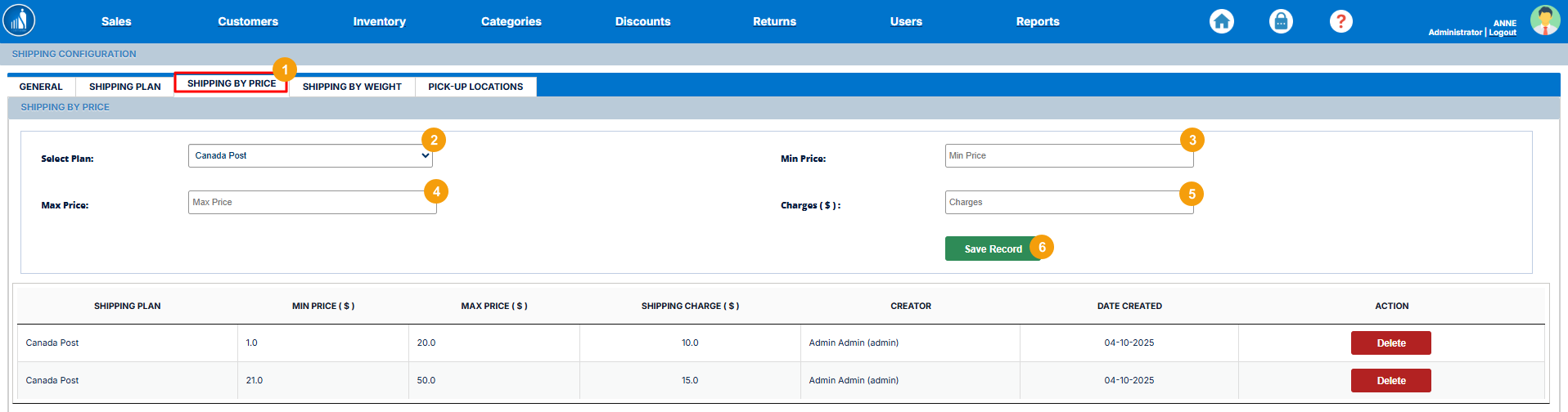
You can also set up minimum and maximum prices for each shipping plan in your store. The orders falling under the specified price range will be shipped for the cost specified as follows:
1. Switch to the Shipping By Price tab under Shipping Config.
2. Select a plan.
3. Enter the minimum order price.
4. Enter the maximum order price.
5. Enter the shipping charges.
6. Click Save Record.
How to Set Up Shipping By Weight?
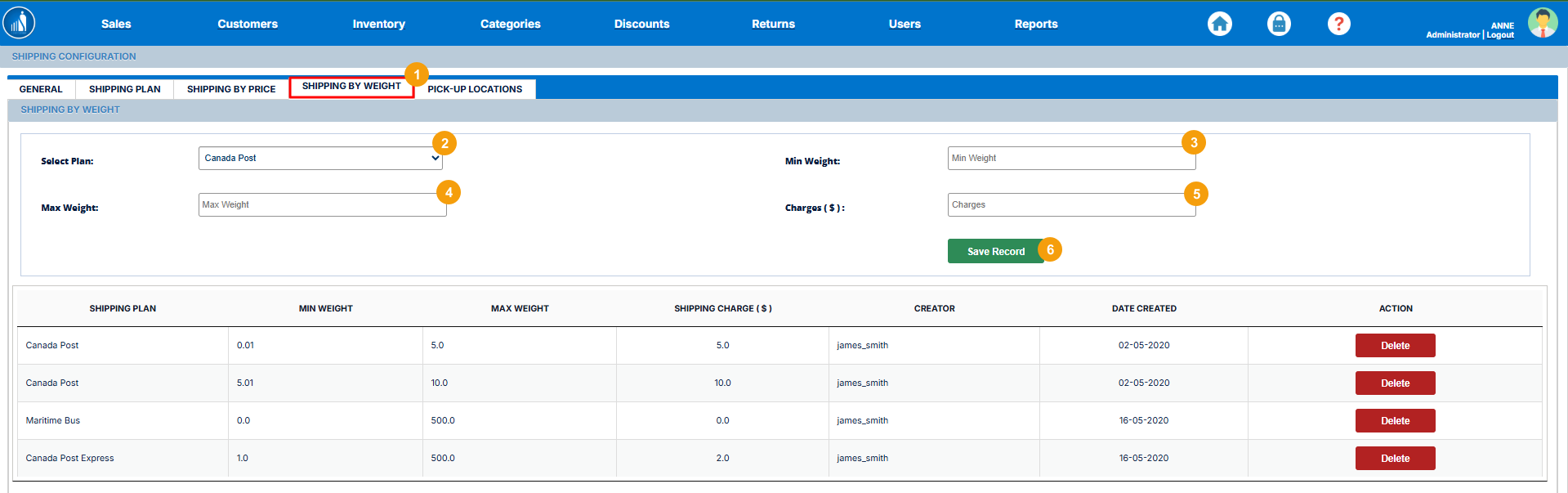
You can set up the minimum and maximum order weight for each shipping plan in your store. The orders weighing under the specified range will be shipped at the cost specified as follows:
1. Switch to the Shipping By Weight tab under Shipping Config.
2. Select a shipping plan.
3. Enter the minimum order weight.
4. Enter the maximum order weight.
5. Enter the shipping charges.
6. Click on Save Record.
How to Set Up the Pick Up Locations?
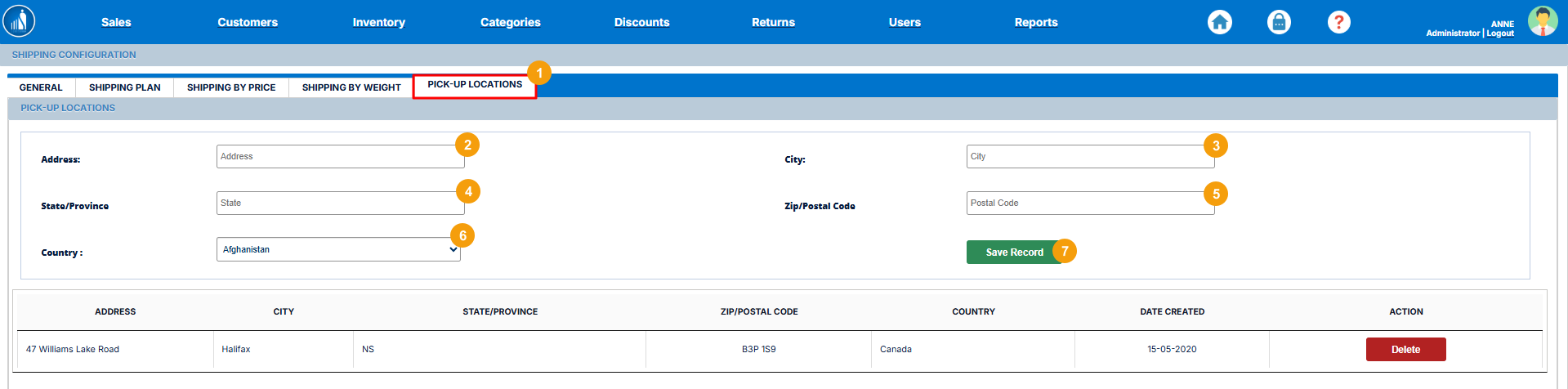
If your store offers order pickup, you can set up the pickup locations as follows:
1. Go to the Pick-Up Locations tab under Shipping Config.
2. Enter the pickup address.
3. Enter the city.
4. Enter the state/province.
5. Enter the zip or postal code.
6. Select the country.
7. Click Save Record.
Auditing System
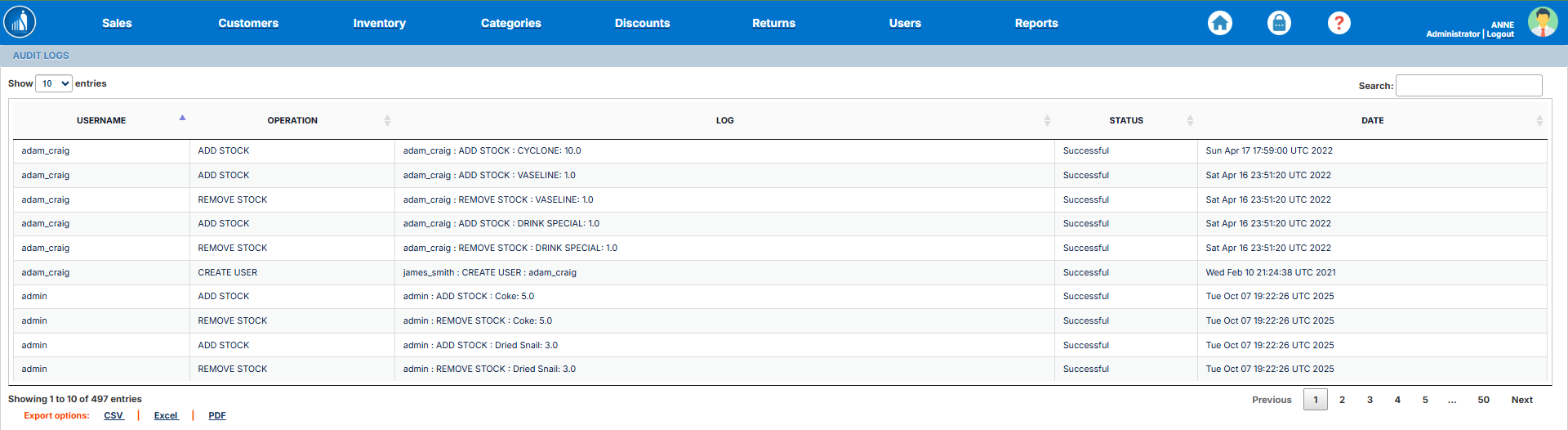
You can view the system audit log under the System Audit option under Settings.
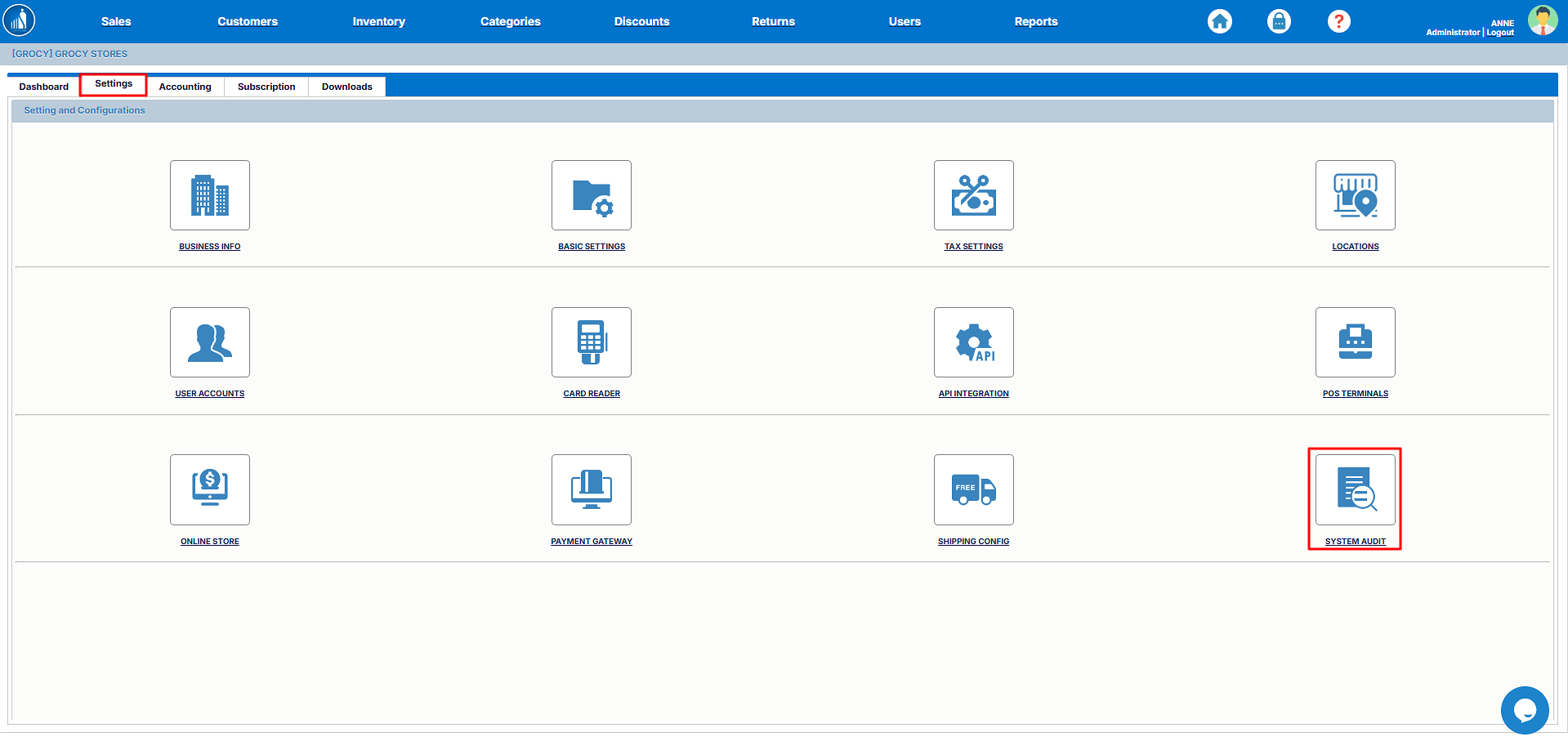
It shows a log of when a particular operation was performed, by whom, and whether it was successful or not.